Help Center » Expenses for Slack
Budget manager
So, you have been assigned a manager of a budget. Congratulations; somebody in your organization has decided you should have the responsibility of overlooking expenses reported within this budget.
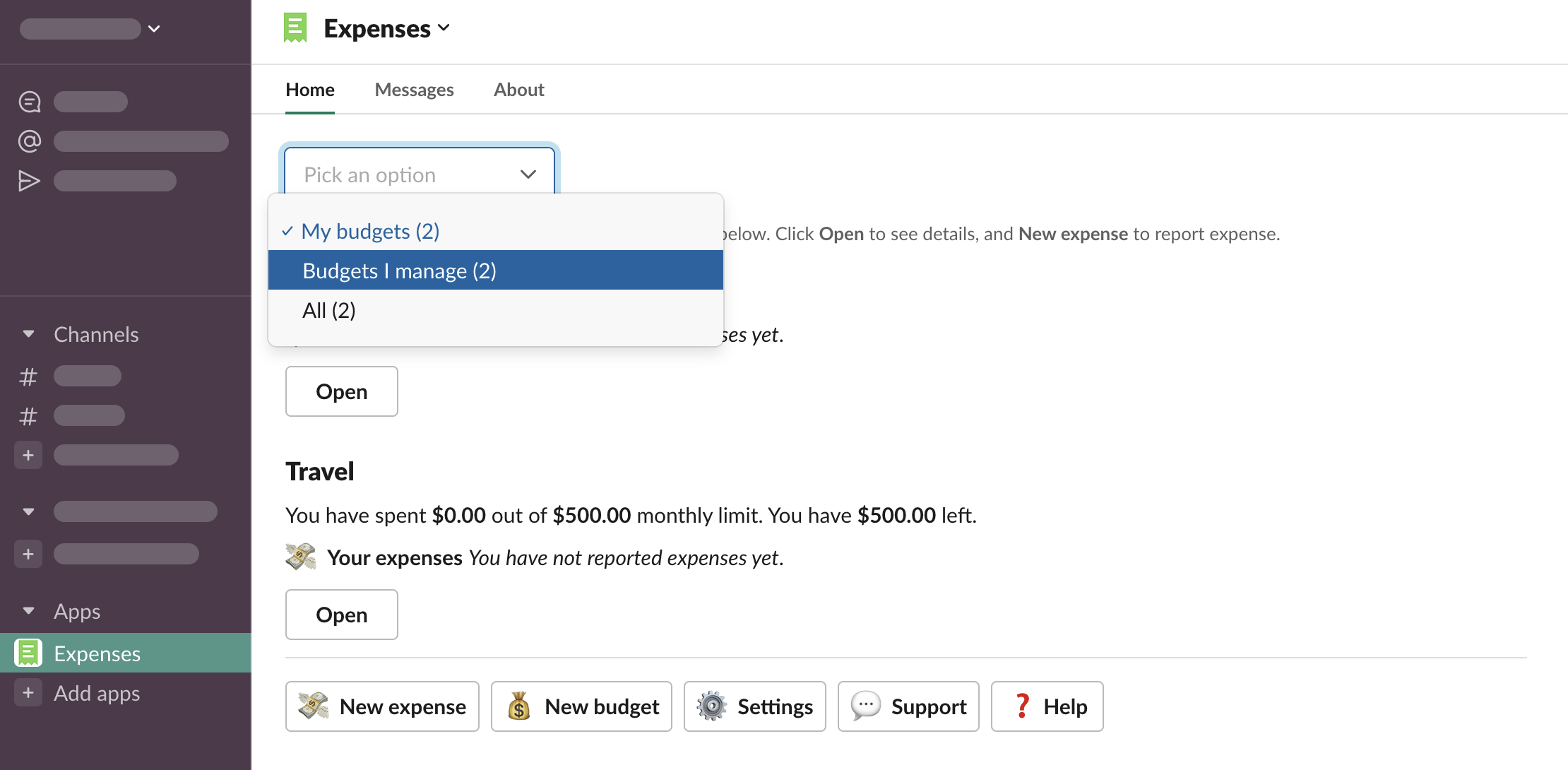
Go to Expenses > App Home and select “Budgets I manage” to list the budgets you are a manager of.
Approving / rejecting expenses
Your main responsibility as a budget manager is making sure the reported expenses are valid and follow the budget policy. Depending on the budget configuration, you might need to approve the expenses explicitly, or they can be approved by default with an option to reject them.
Notifications
You will receive a notification whenever an expense is reported.
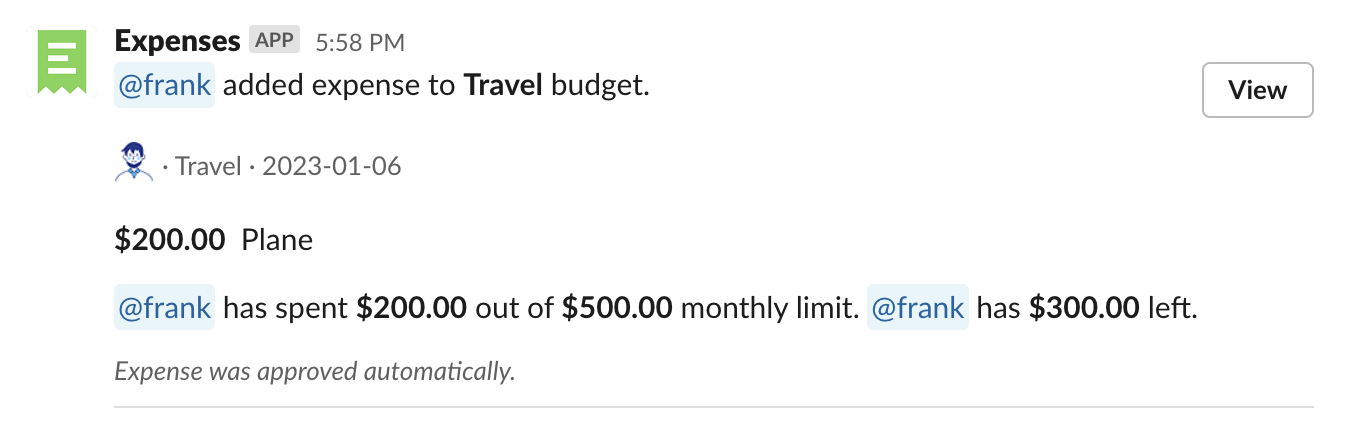
In this case, the expense was approved automatically. If it is valid, you don’t need to take any action.
Approving
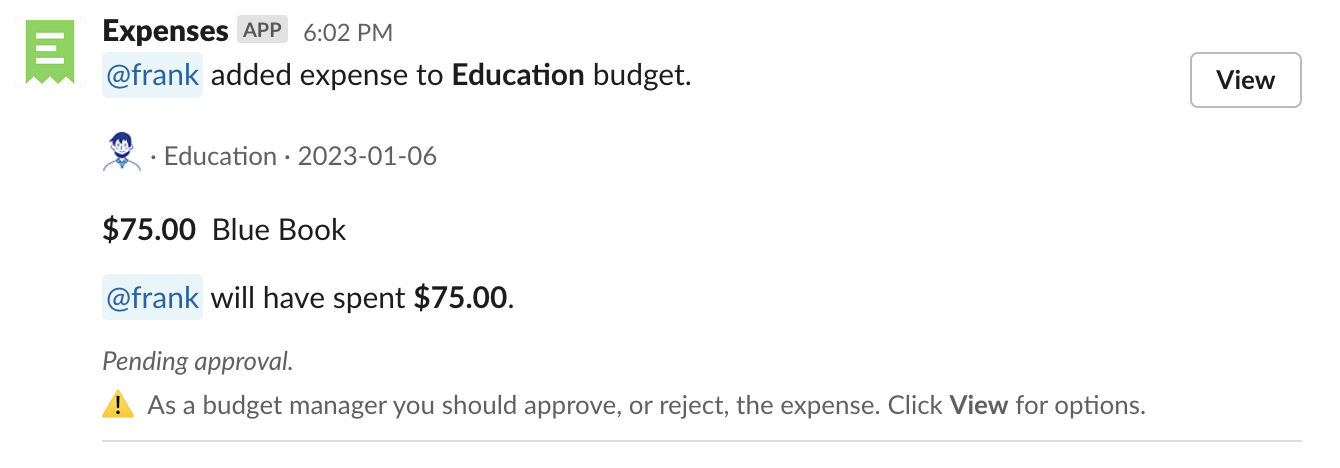
If an expense requires your approval, you will receive this kind of notification.
Click “View”
Click “Approve”
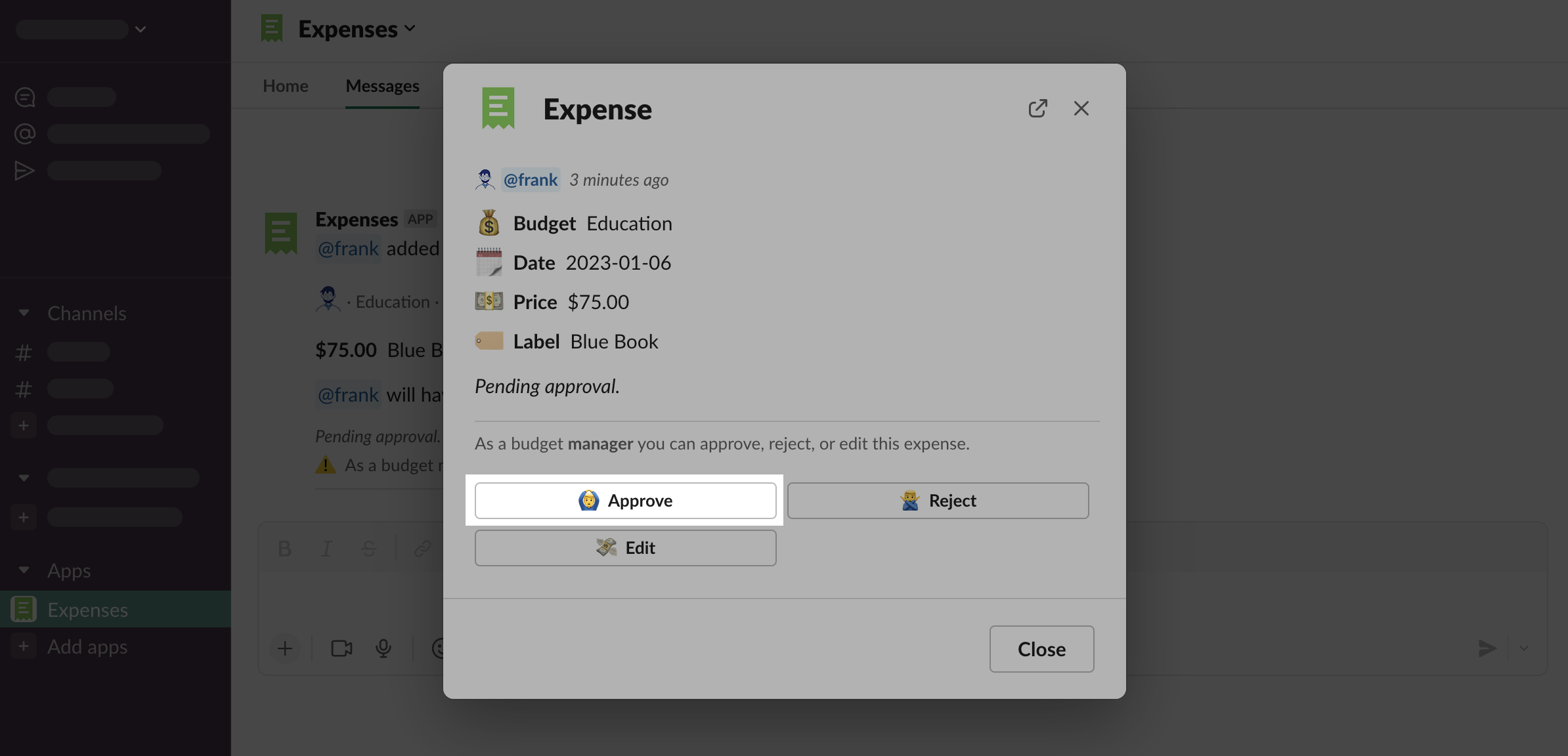
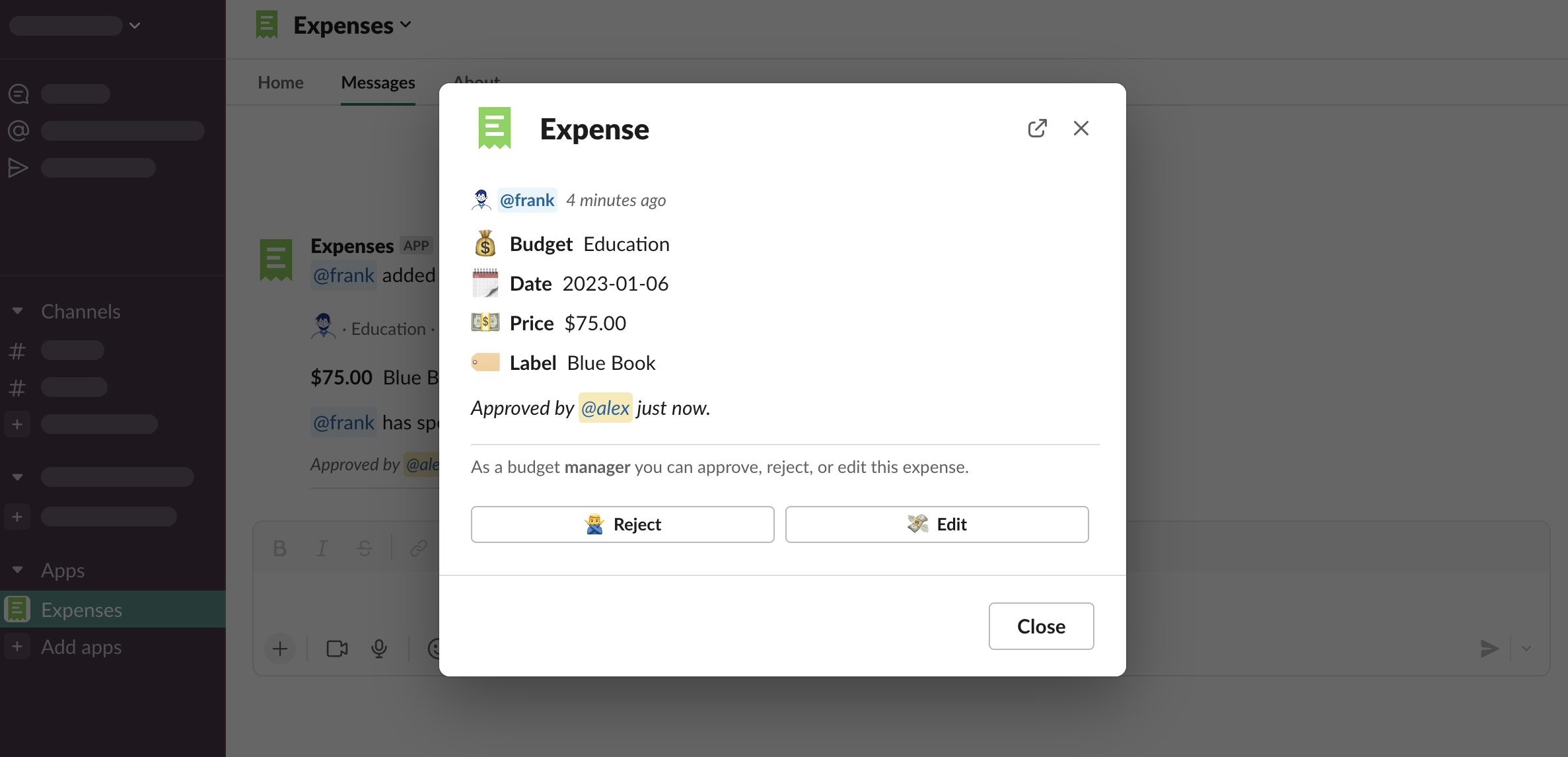
You can see the expense has been approved
And the user who has reported this expense has received this kind of notification

List of expenses to approve
Open Expenses > App Home, click “Expenses to approve” button
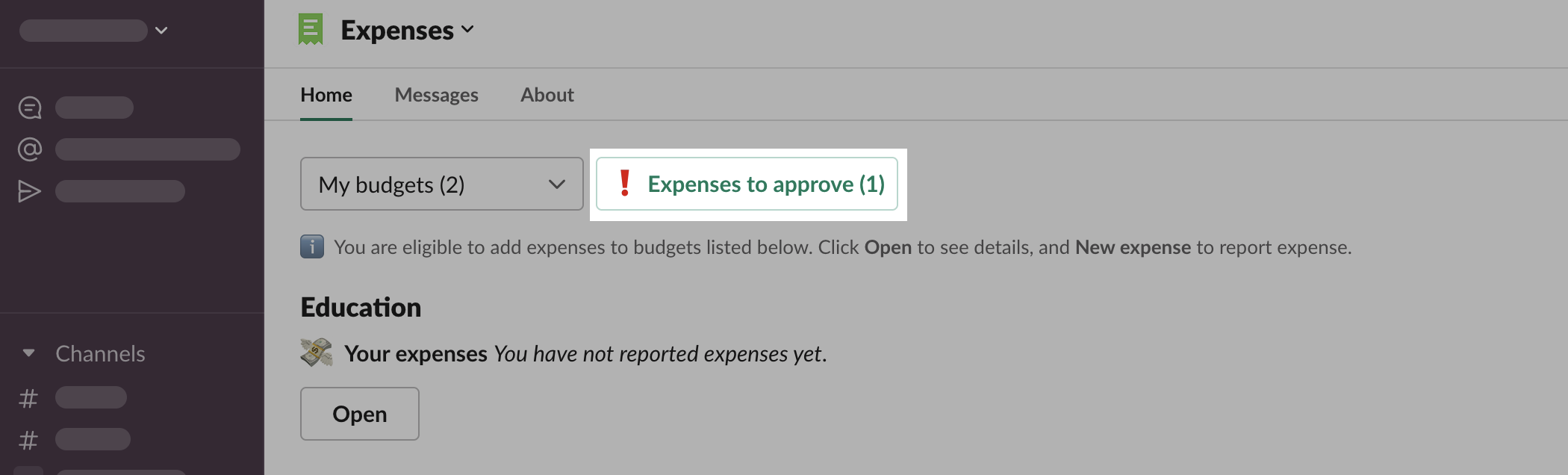
See a list of all expenses pending for your approval
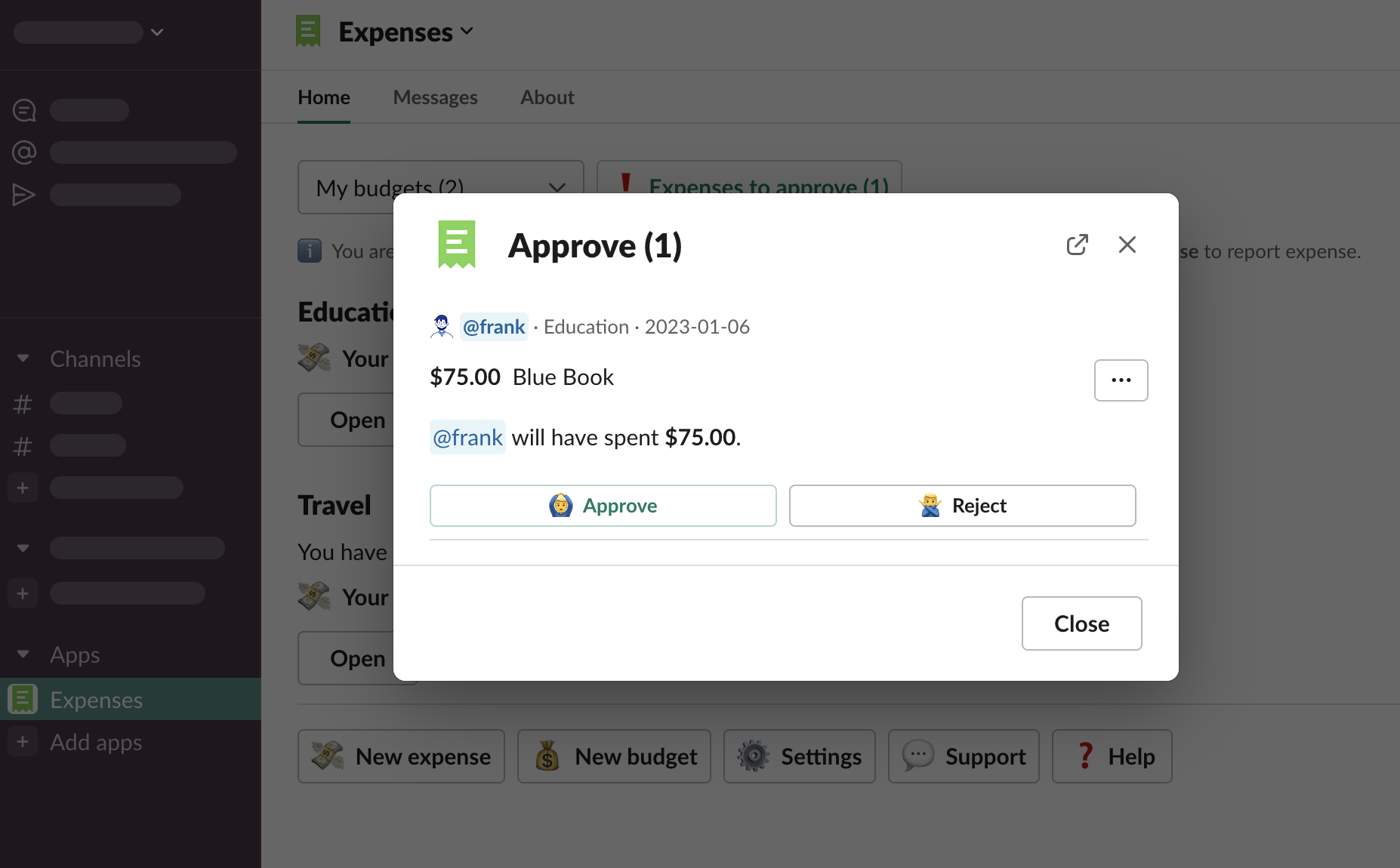
Rejecting
Click “View”
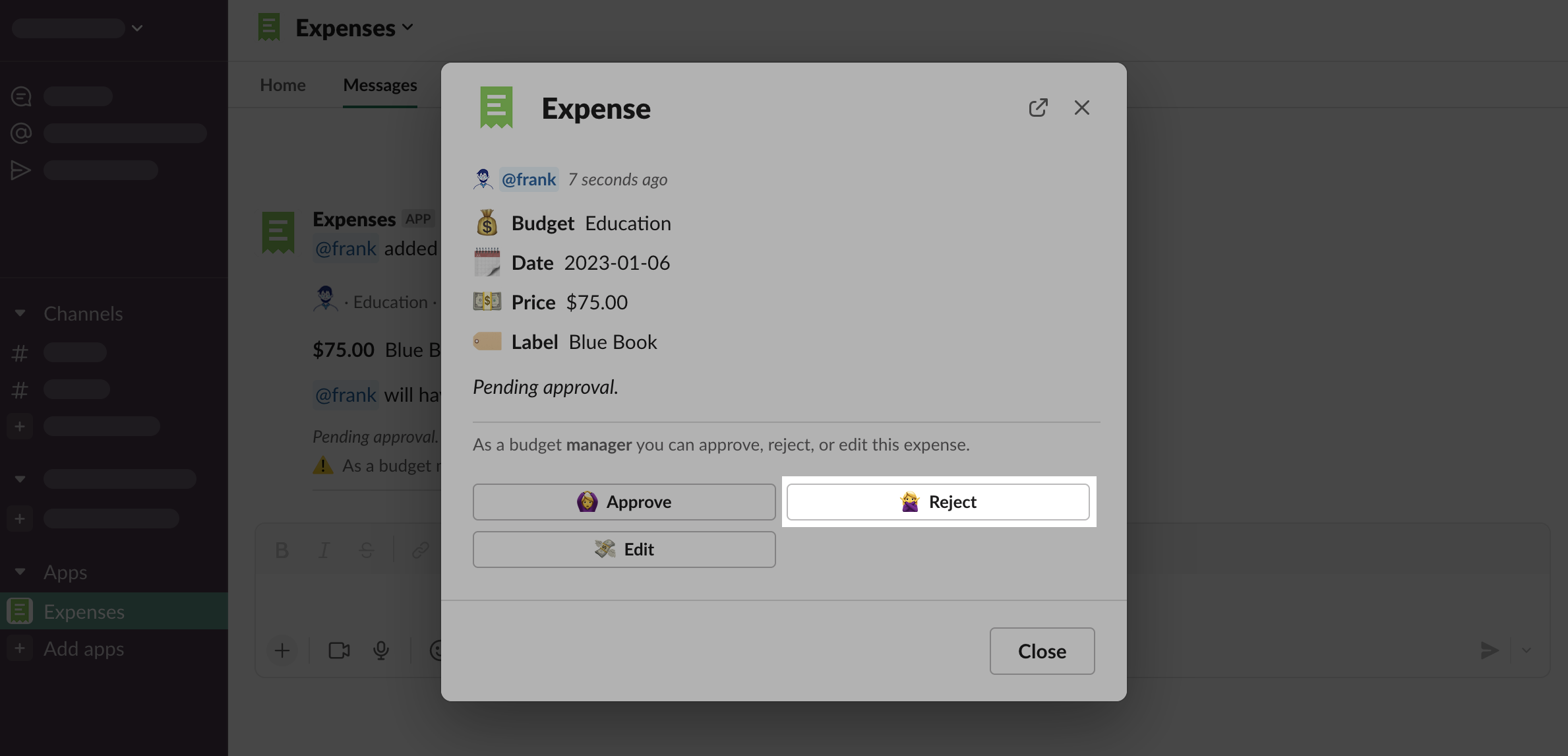
Click “Reject”
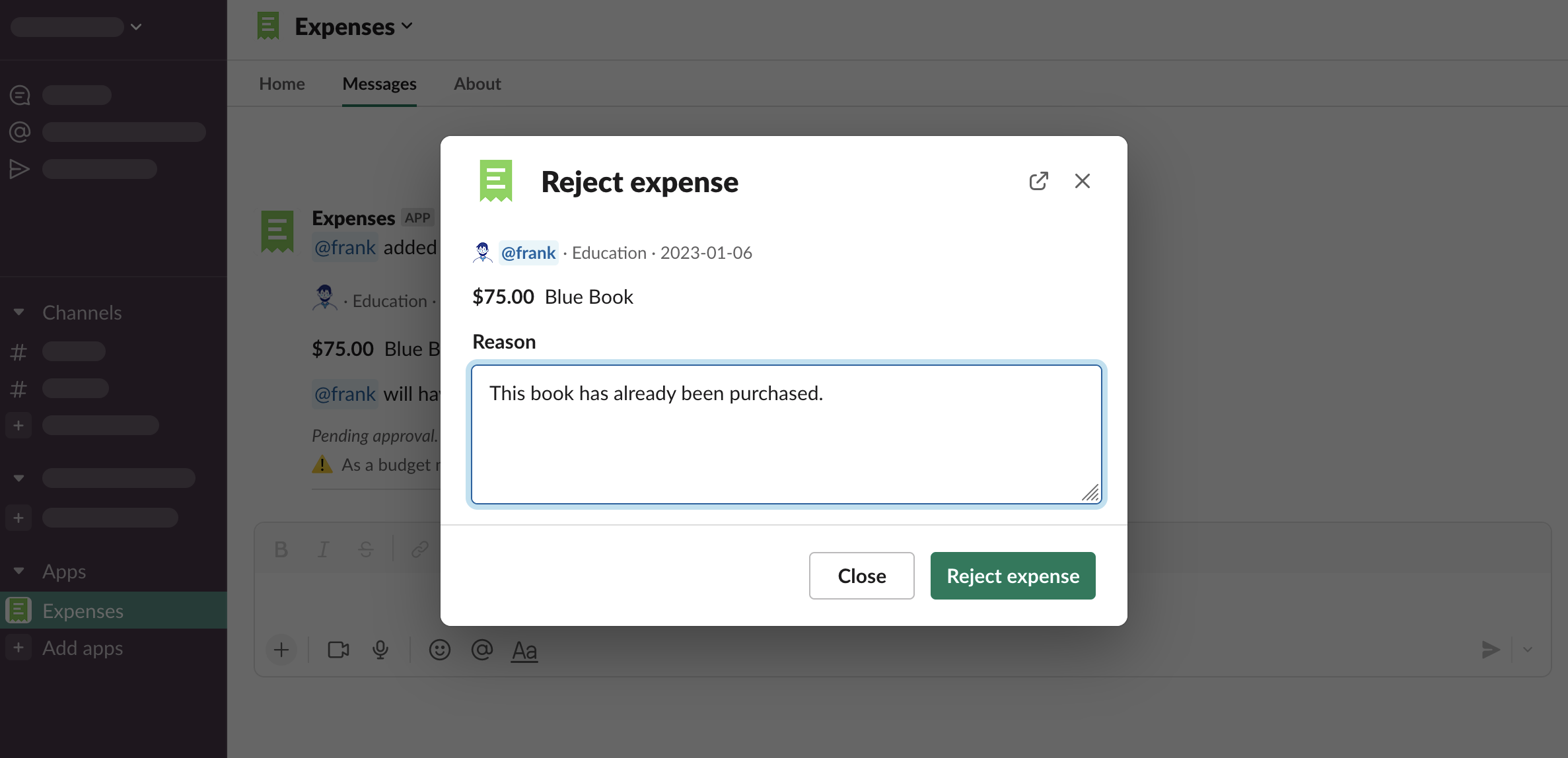
Provide a reason, click “Reject expense”
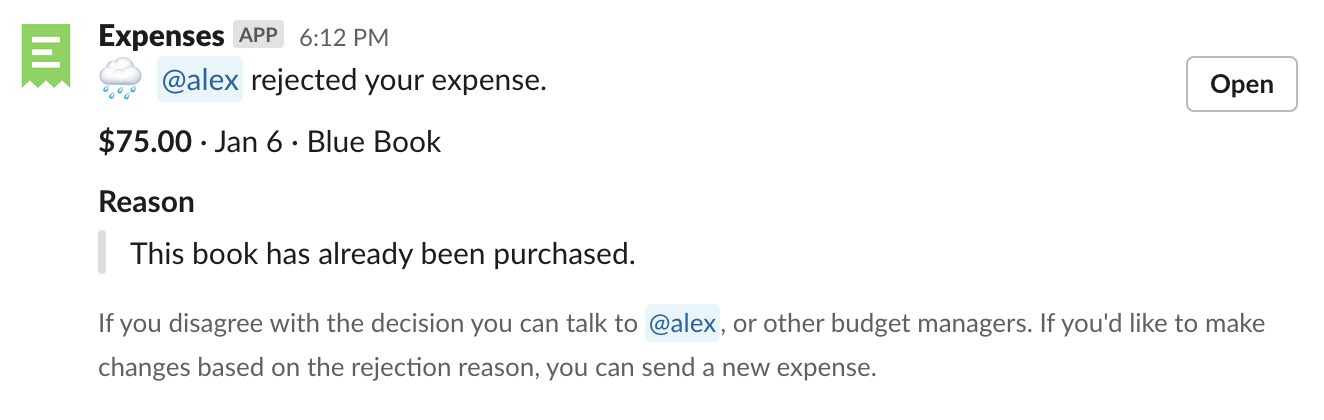
The user who has reported this expense has received this kind of notification
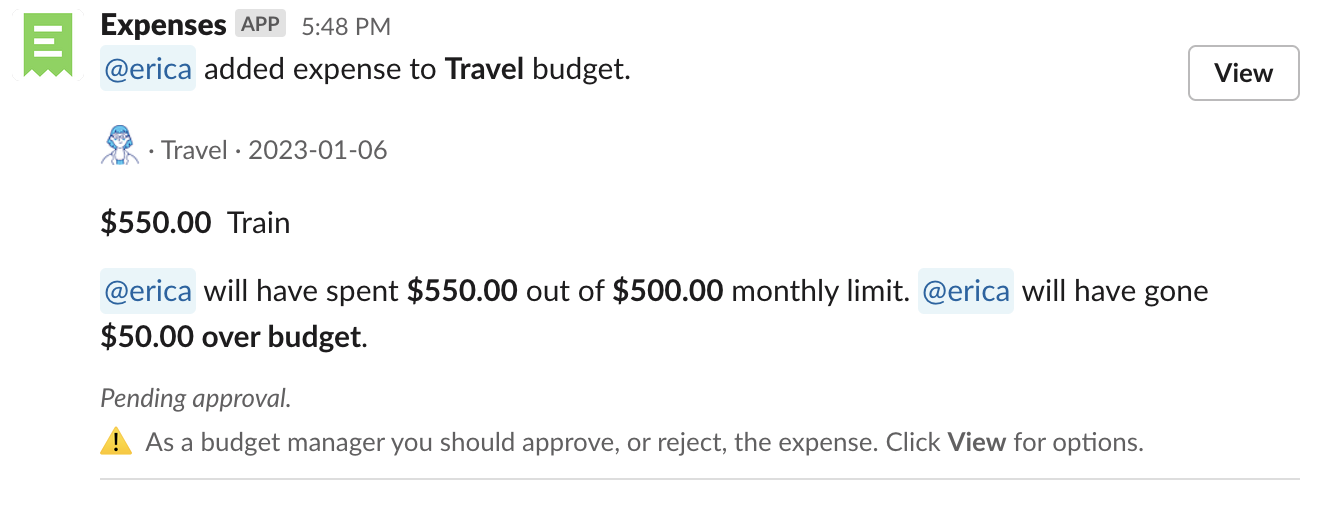
Expenses reported over the limit
Editing expenses
Only budget managers can edit expenses, regardless of whether they’re pending, approved, or rejected.
Click “View”
Click “Edit”
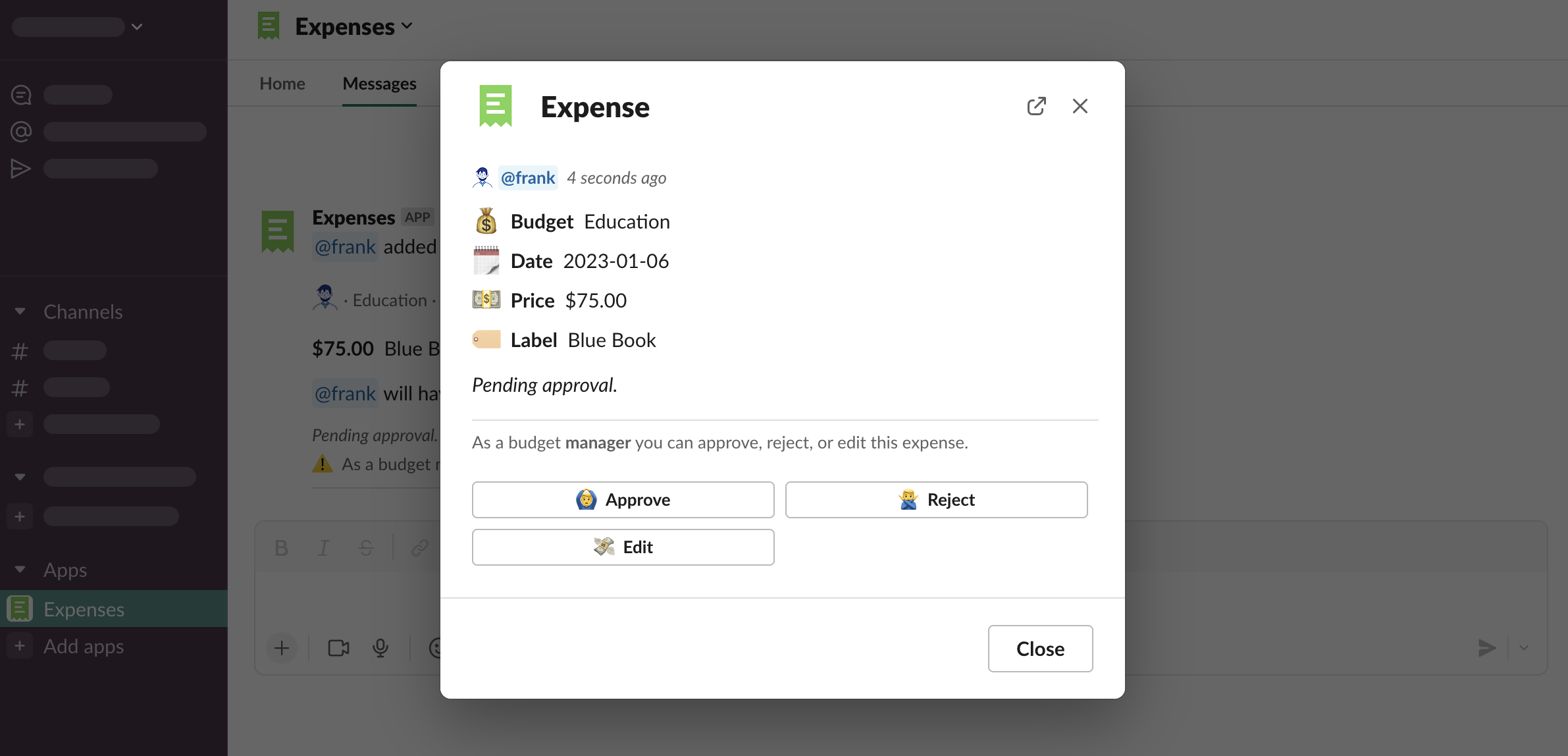
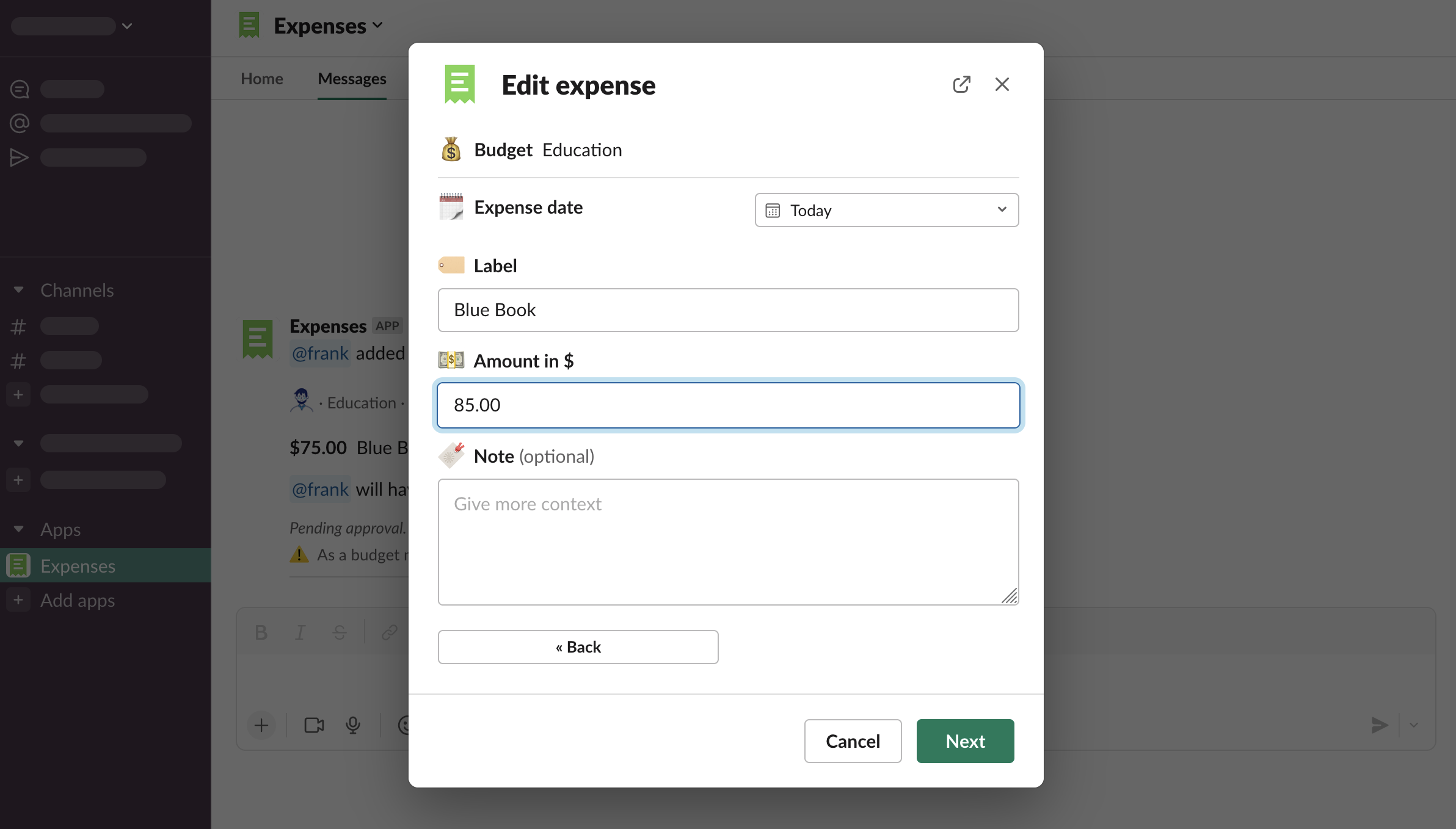
Make the changes, click “Next”
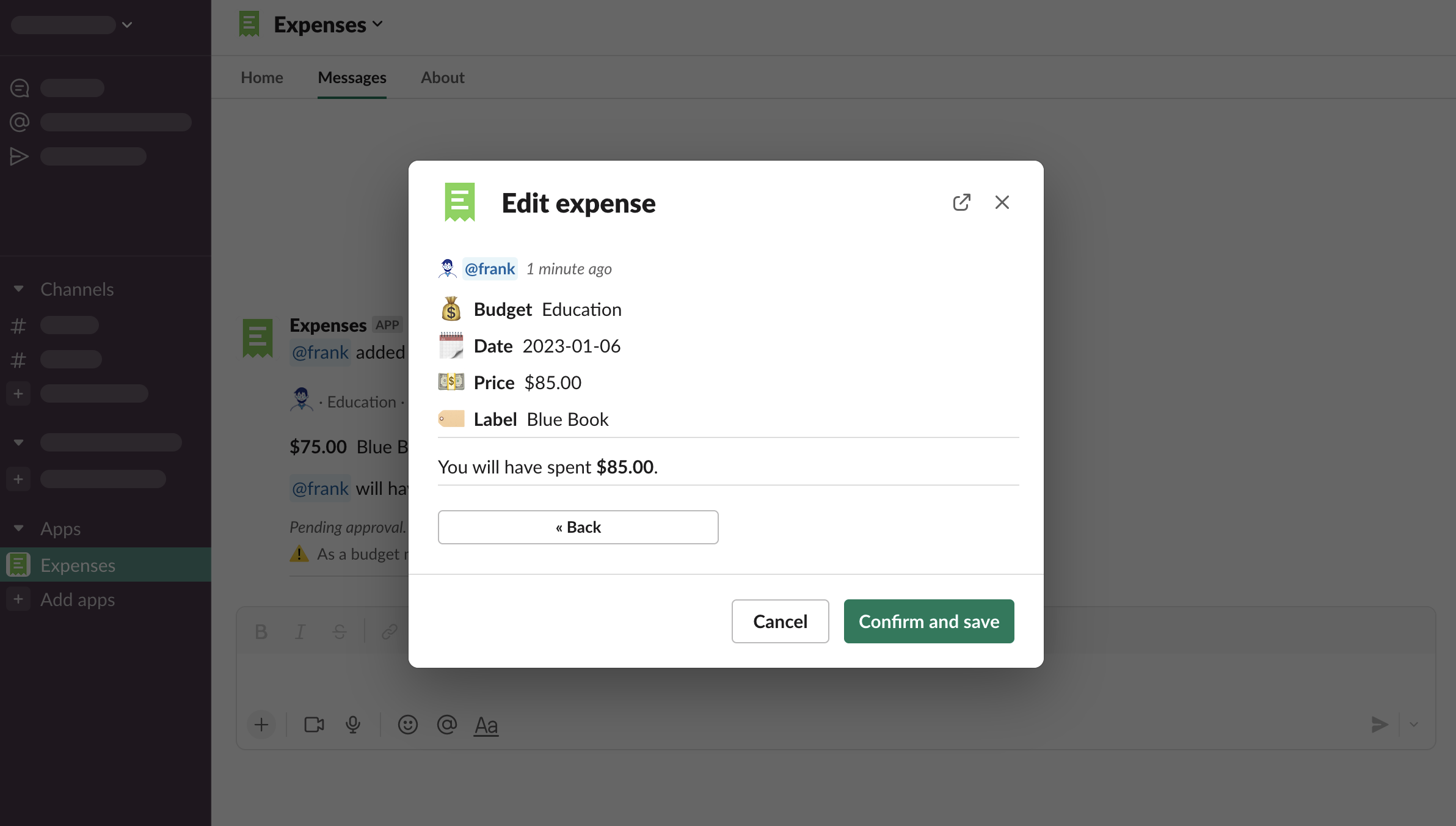
Click “Confirm and save”
The user who has reported this expense has received this kind of notification

Managing eligibility
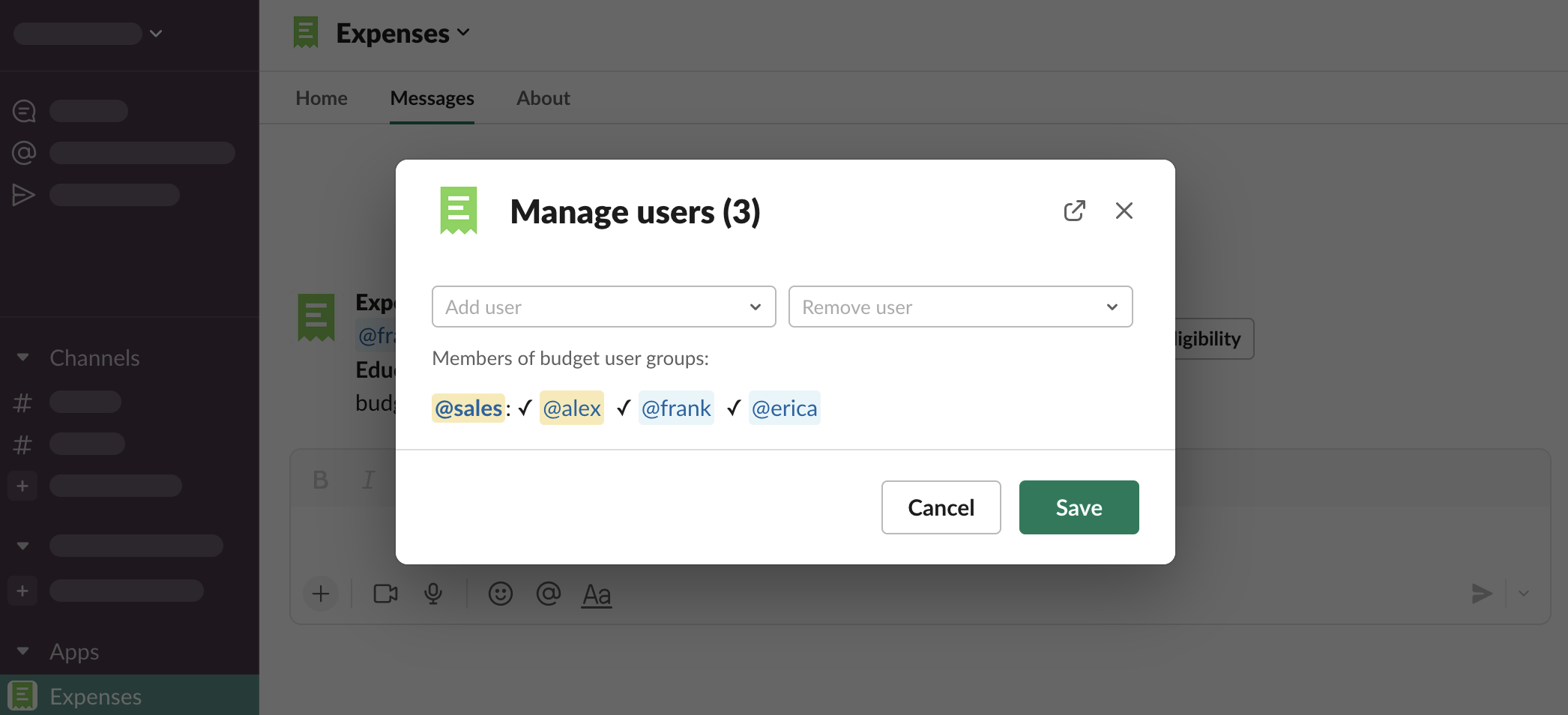
As a budget manager you can manage budget’s eligibility when it’s set to “Selected users” or “Selected user groups”.
Open budget, click “Manage eligibility”
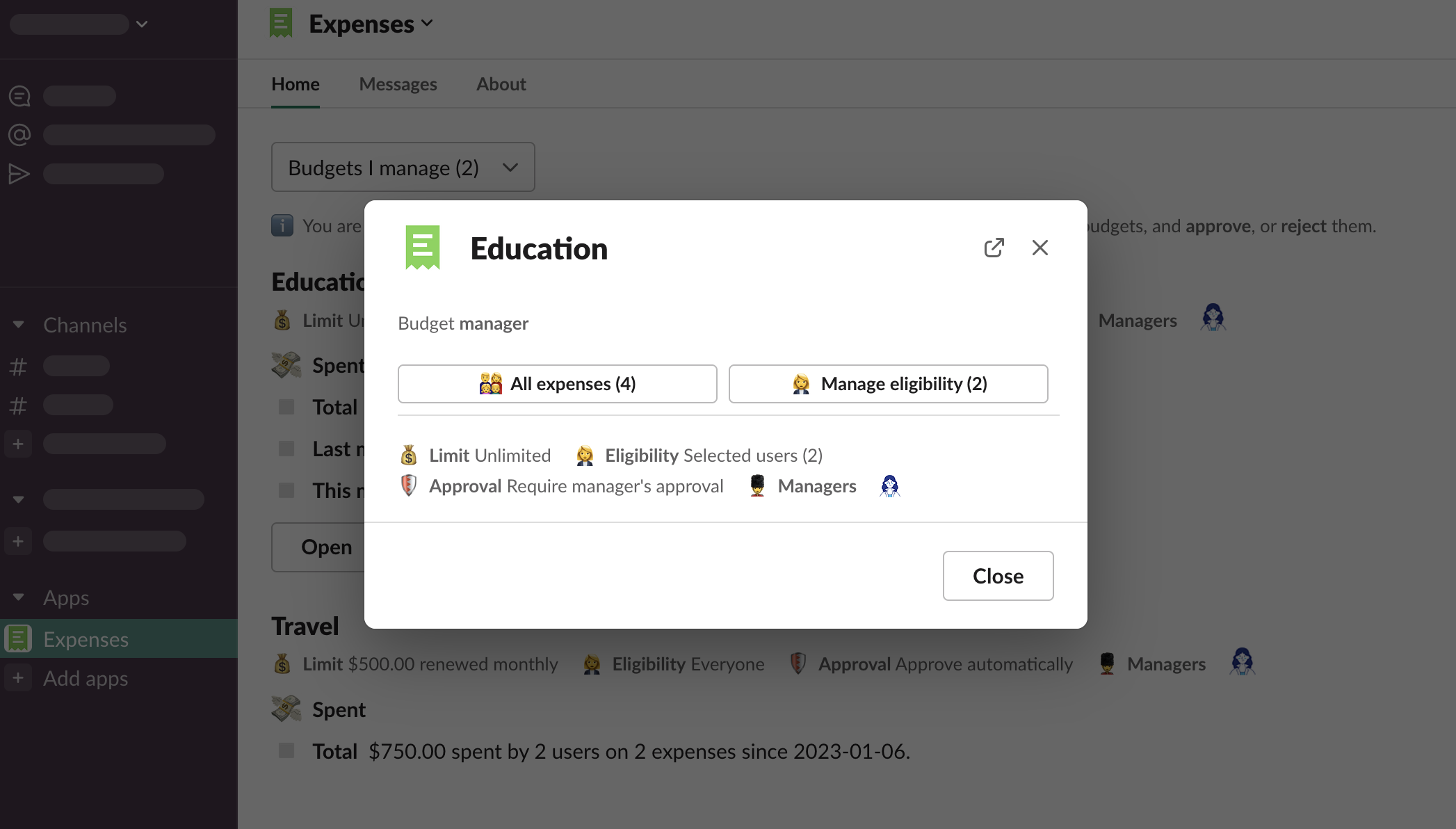
Add or remove eligible users, click “Save”
User group membership changes
When a budget has eligibility set to “Selected user groups” and a person who is eligible to use the budget is removed from the user group, you will receive this kind of notification

When a person who is not eligible to use the budget is added to the user group, you will receive this kind of notification

Click “Manage eligibility”
Make necessary changes, e.g. Add user >
@frank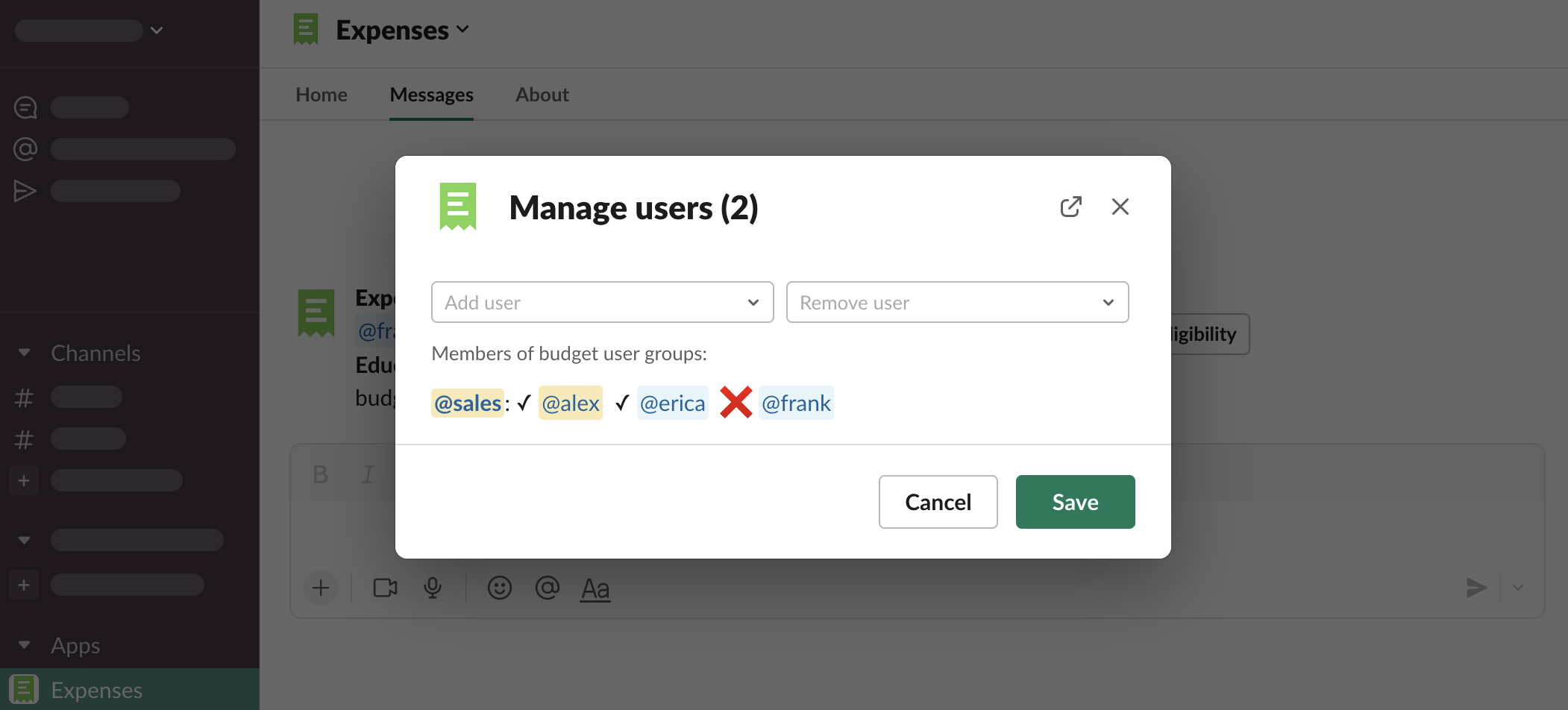
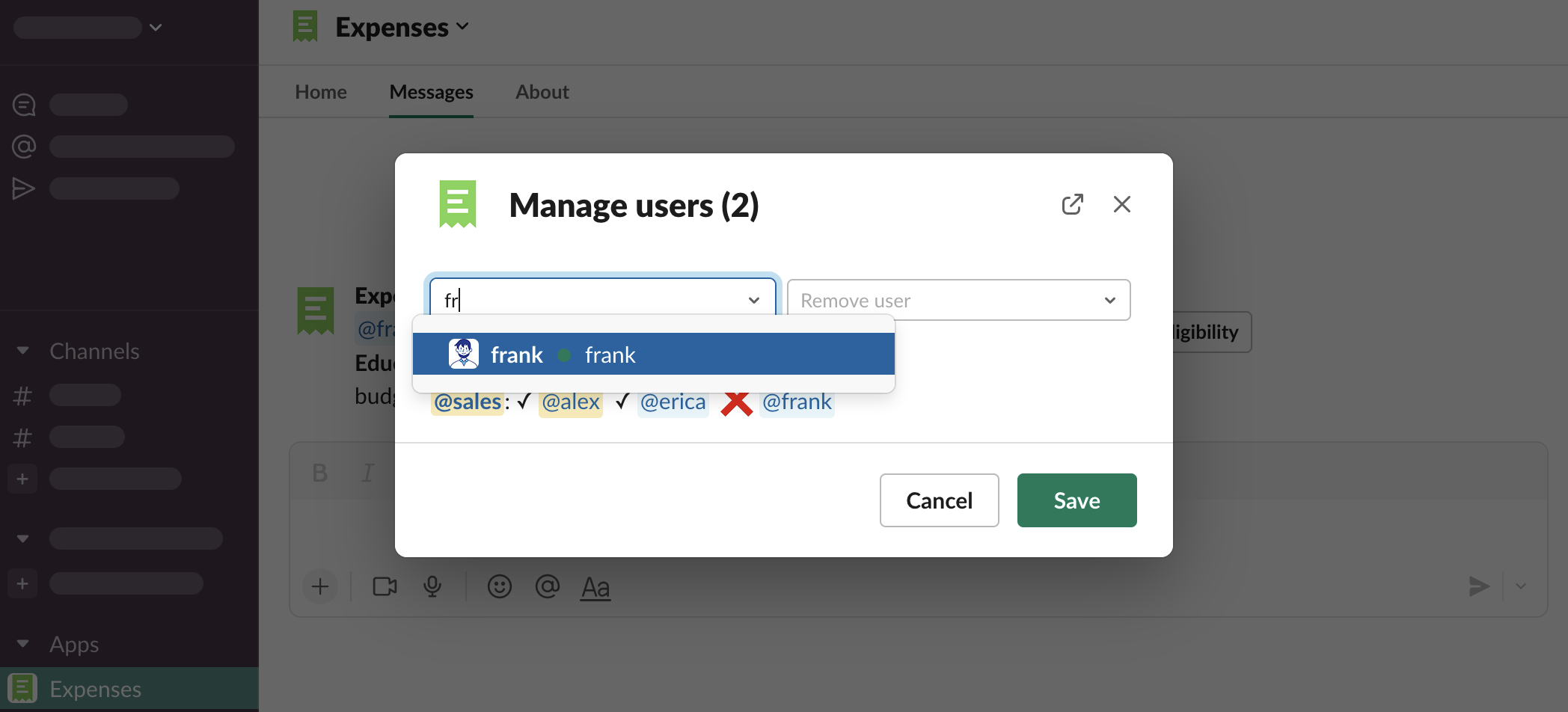
Click “Save”