Help Center » Expenses for Slack
Reporting expenses
Go to Expenses > App Home to list all the budgets you are eligible to report expenses to.
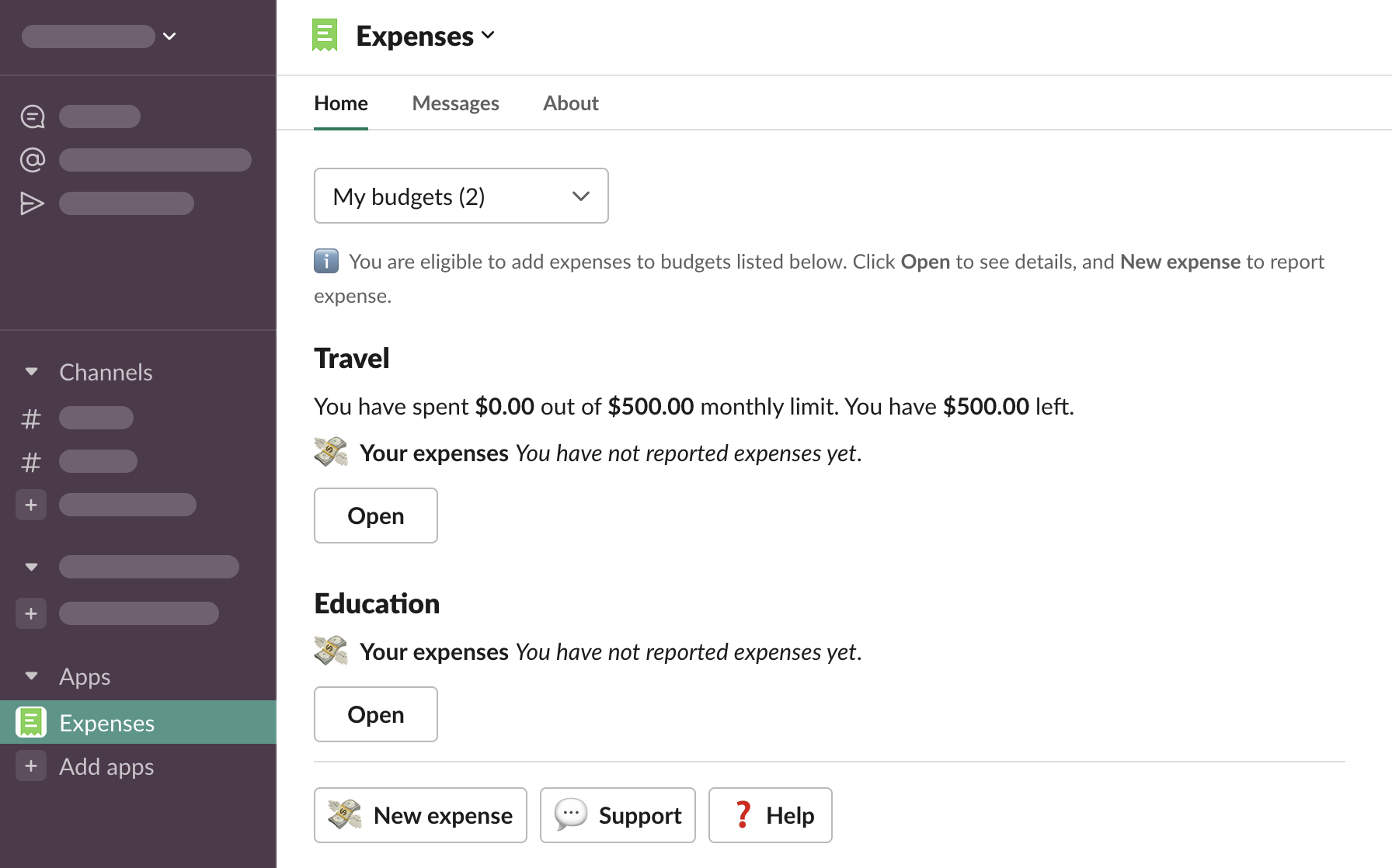
Budgets configuration can include limits on how much can be spent, and approval policy. To learn more about how budgets are configured, see Administrator.
Budget managers will receive notifications about all the expenses reported. To learn more about what will happen after you report the expense, see Budget manager.
Upload a receipt
You can attach any file in Slack as a receipt. The easiest way to do it is to send it to Expenses app.
Open Expenses > Messages
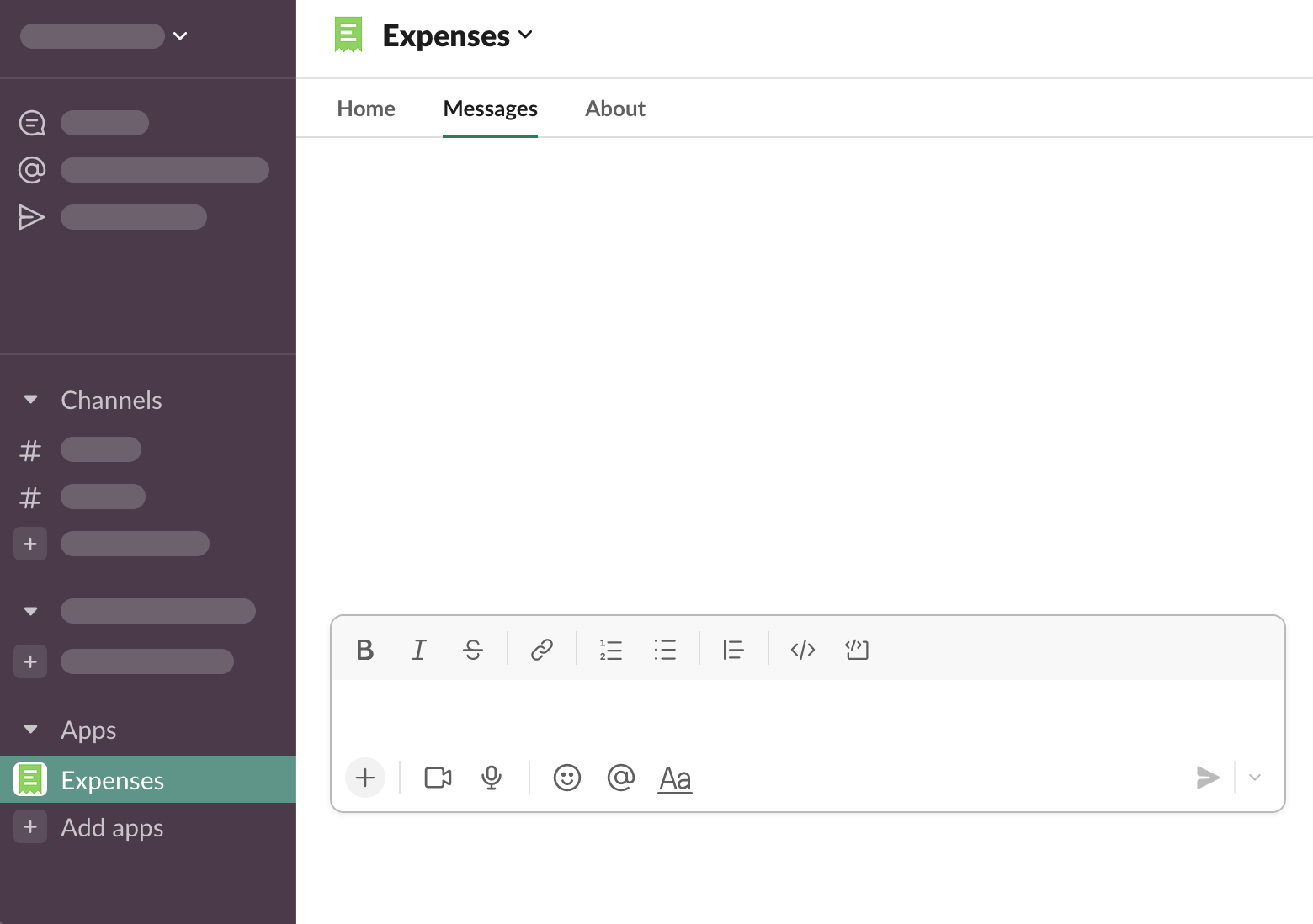
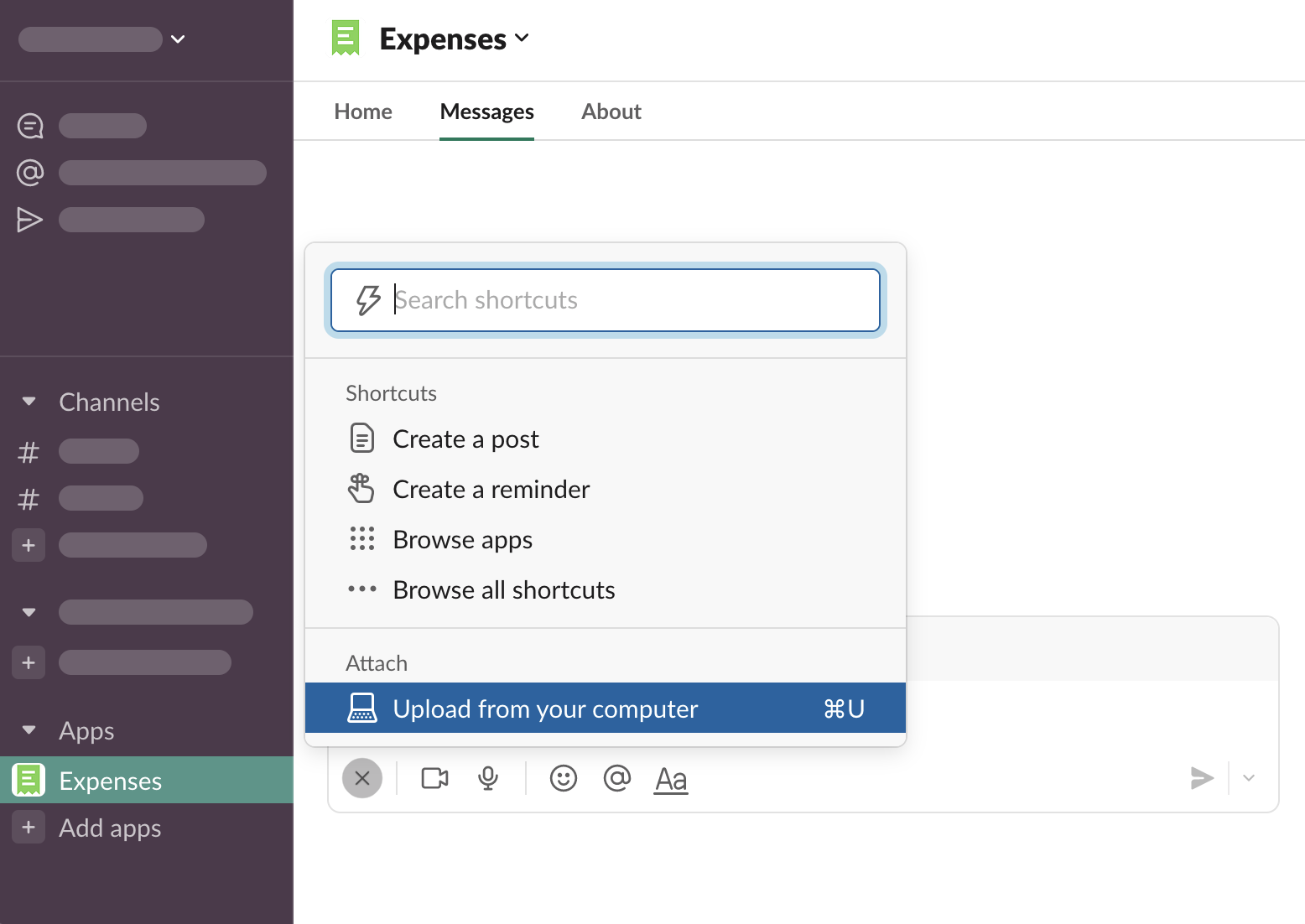
Click + > Upload from your computer…
… or drag and drop file from your computer into the Slack window
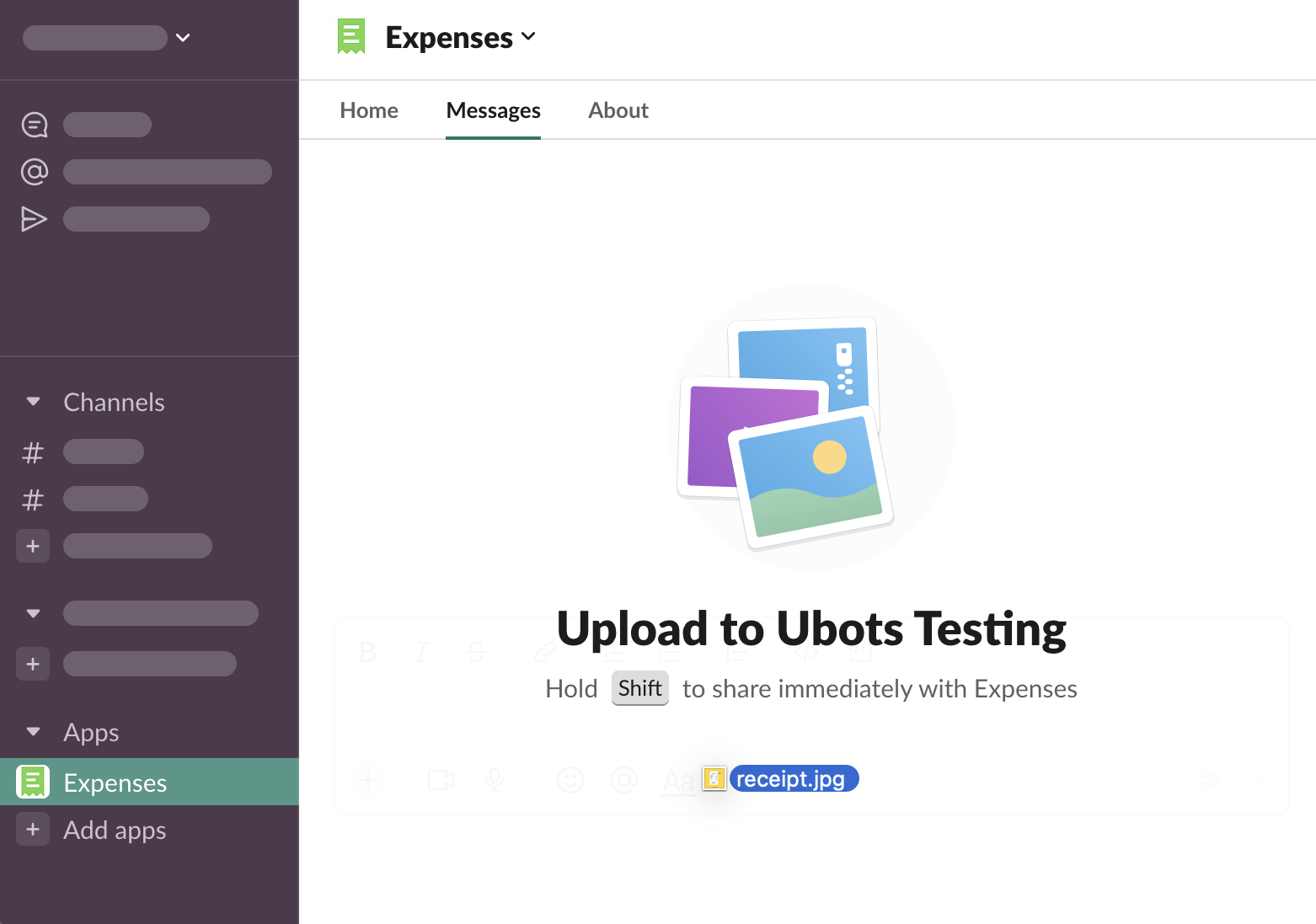
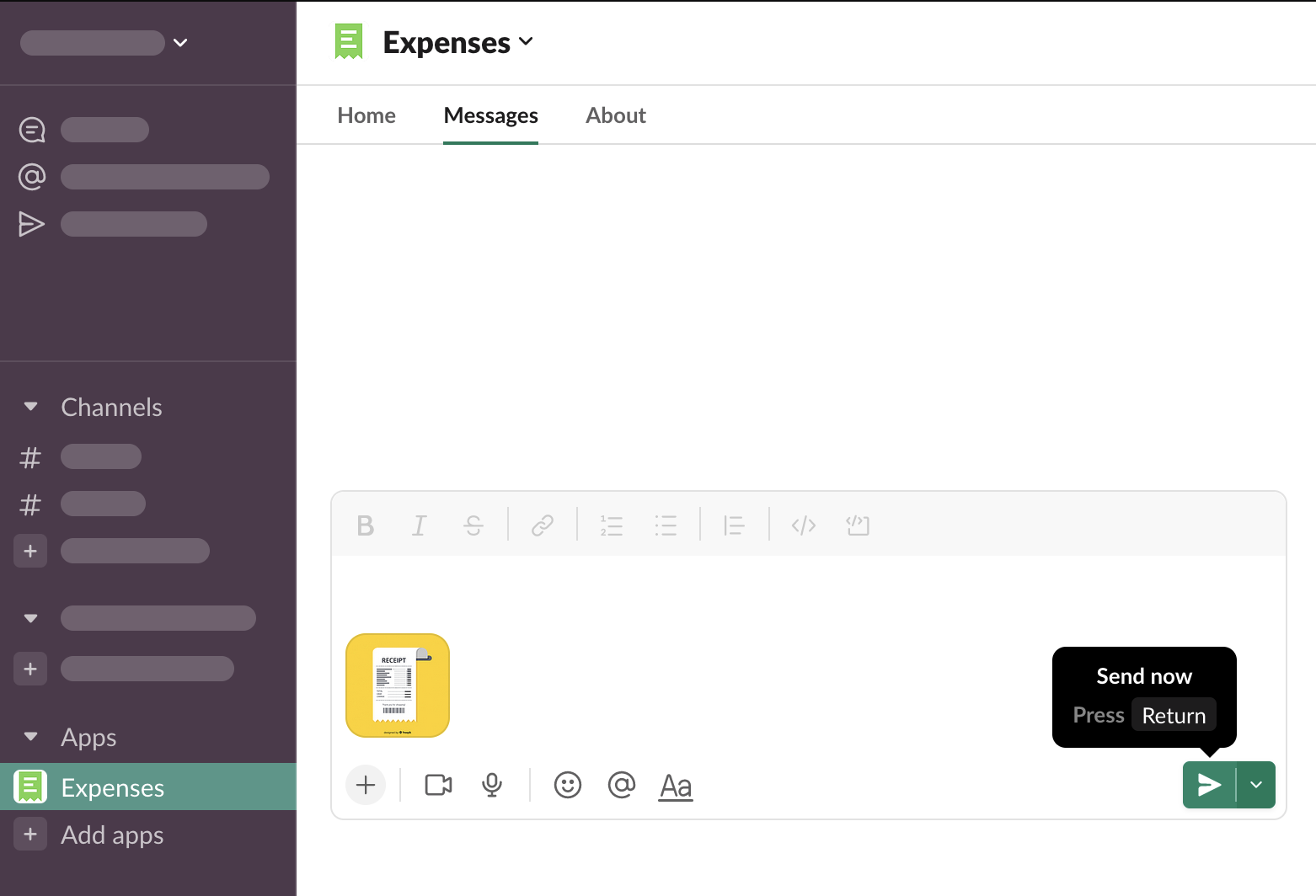
Send the file as a message
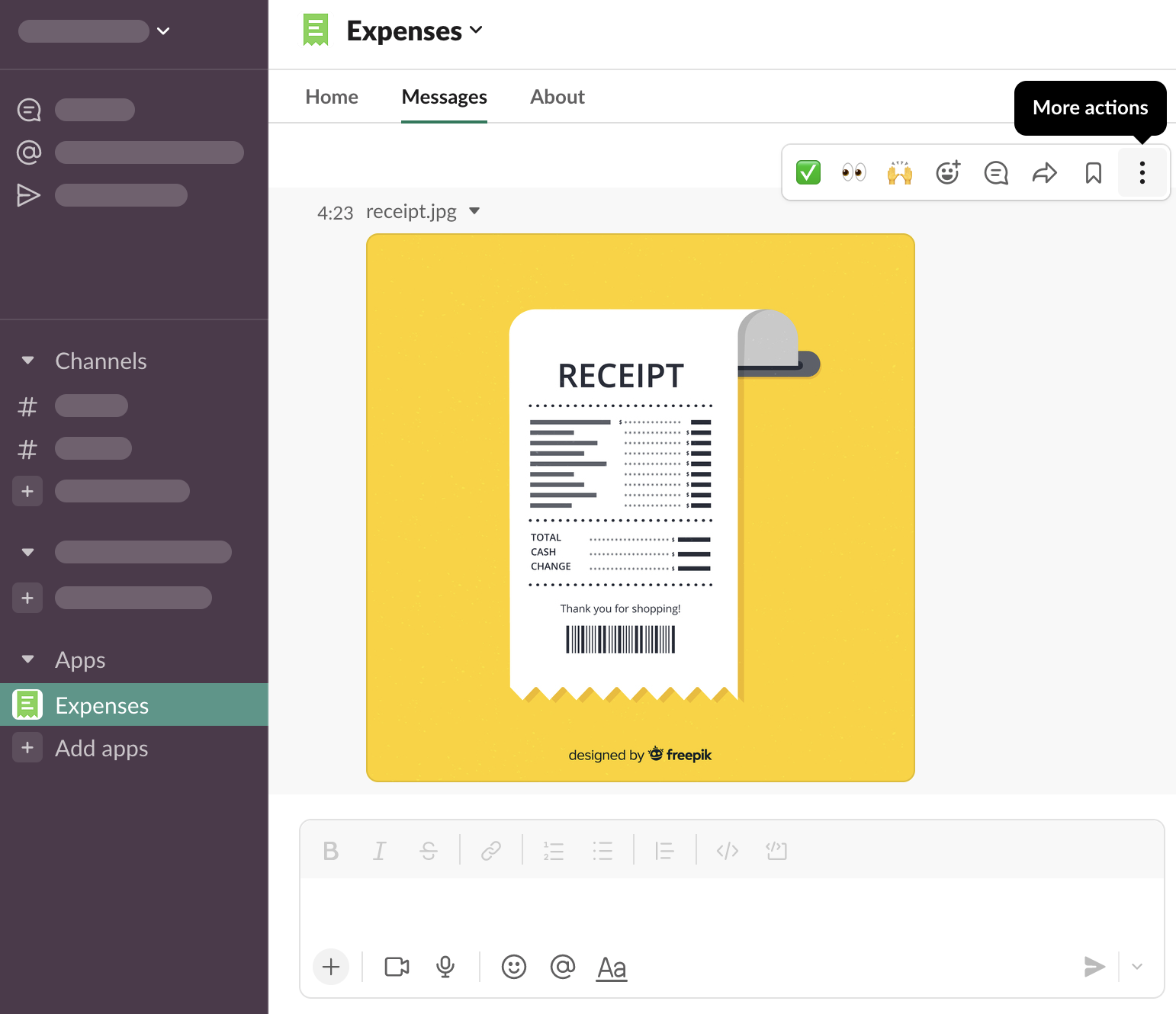
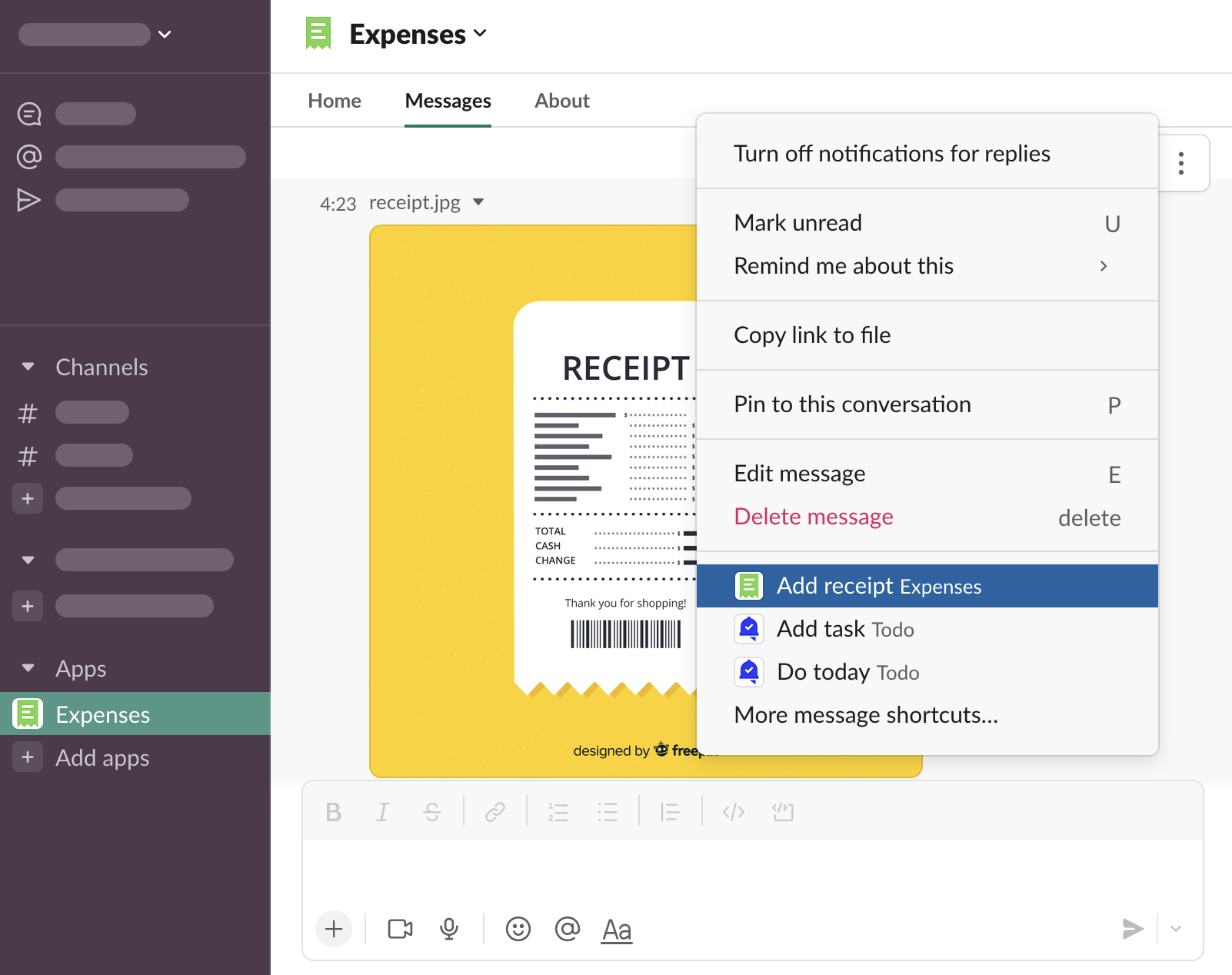
Hover over the message, click “⋮ More actions”
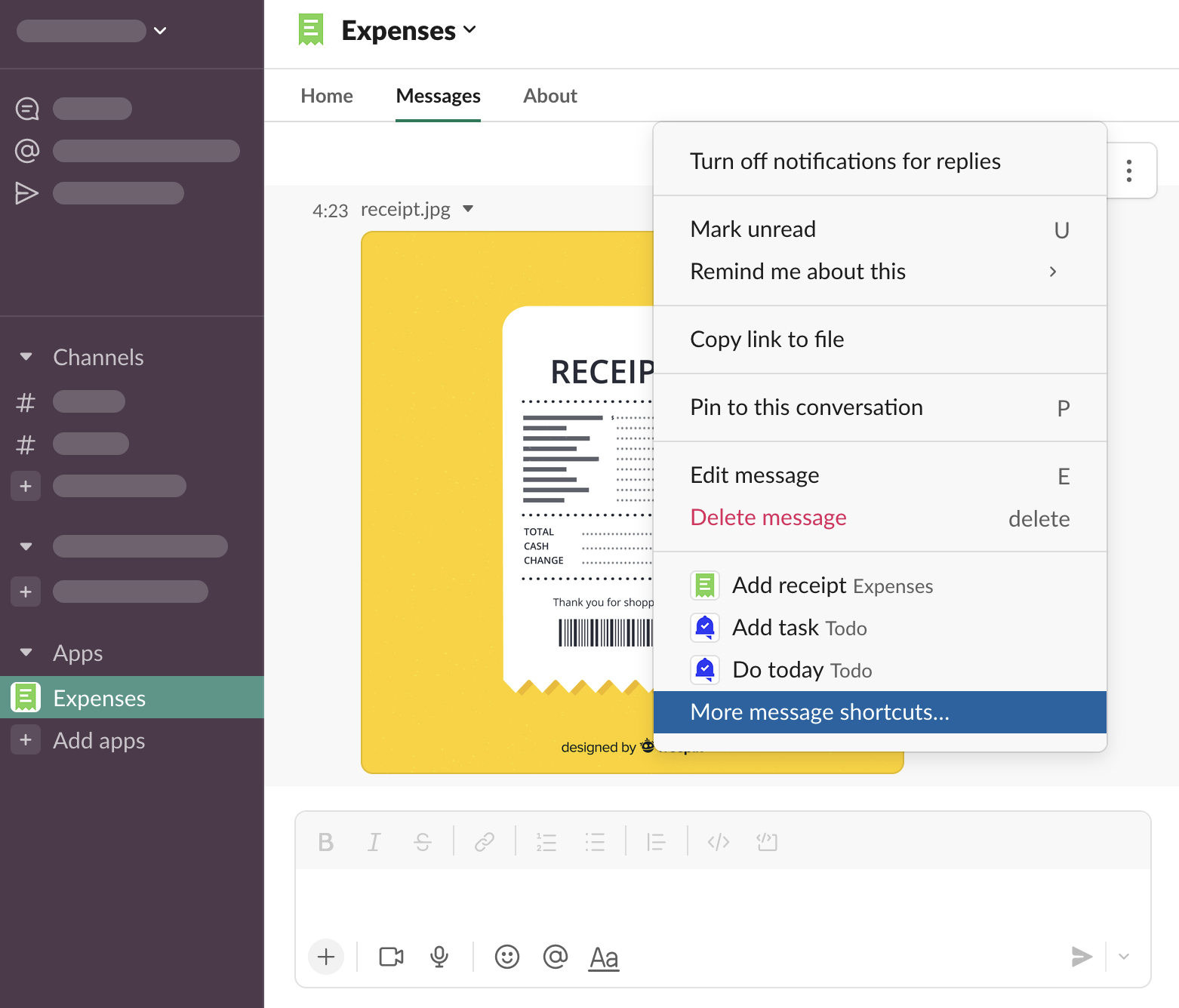
You will see message shortcuts you use most often. When starting working with Expenses, likely you won’t see Expenses on the list. Click “More message shortcuts…”
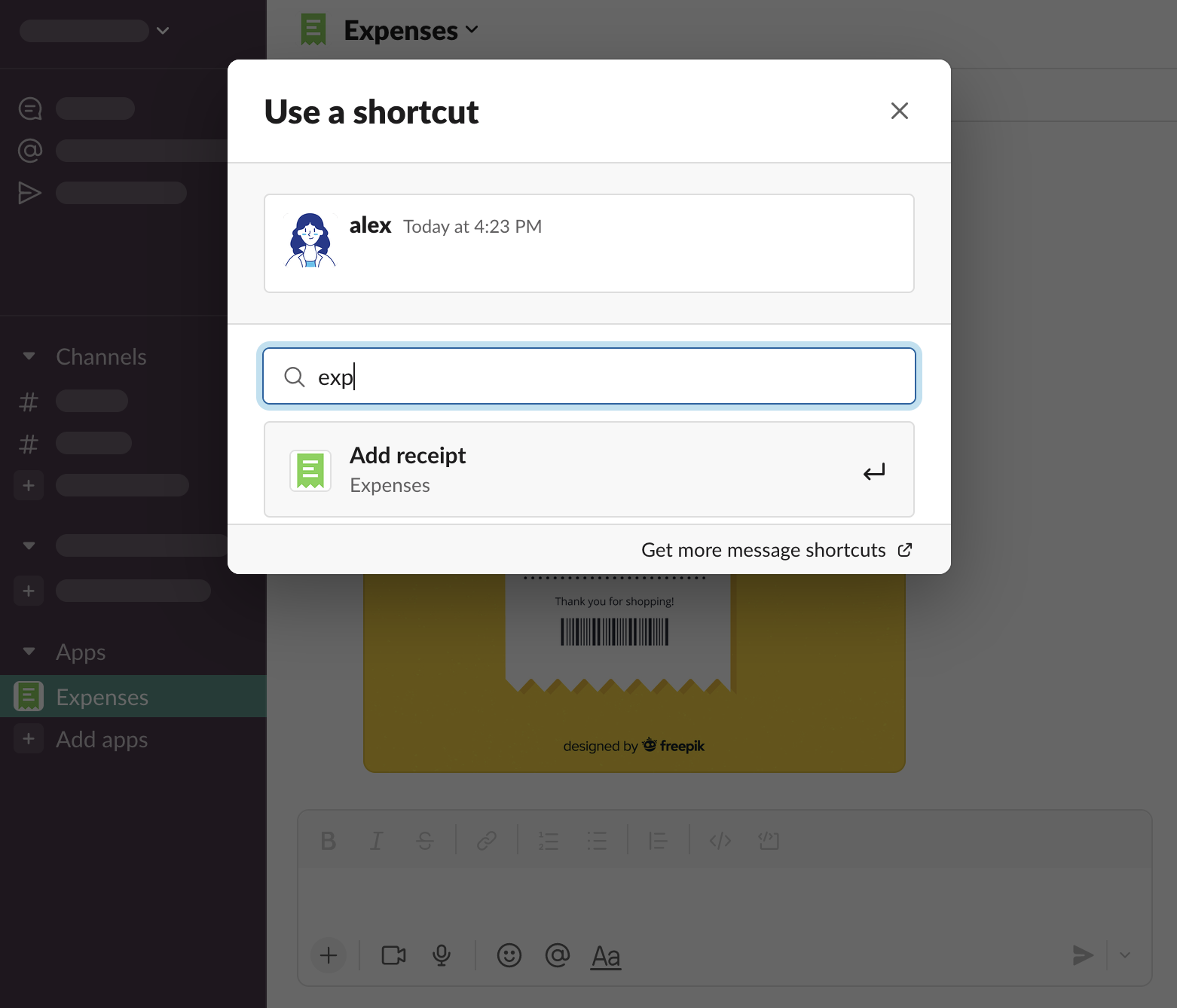
Find “Add recept” from Expenses on the list and click it
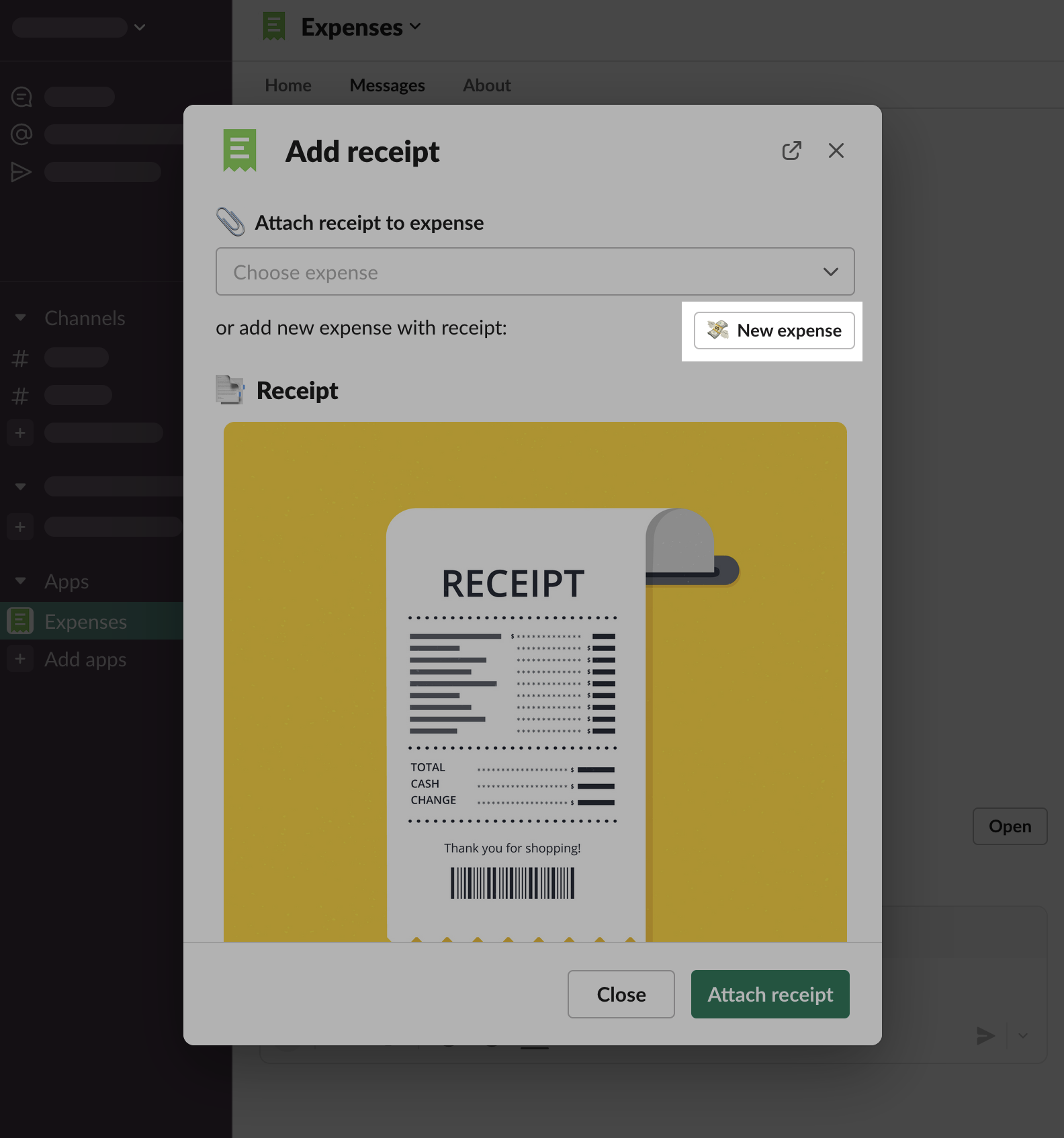
If this is not your first expense, you will be asked whether you want to attach the receipt to existing expense, or to add new expense. Click “New expense”
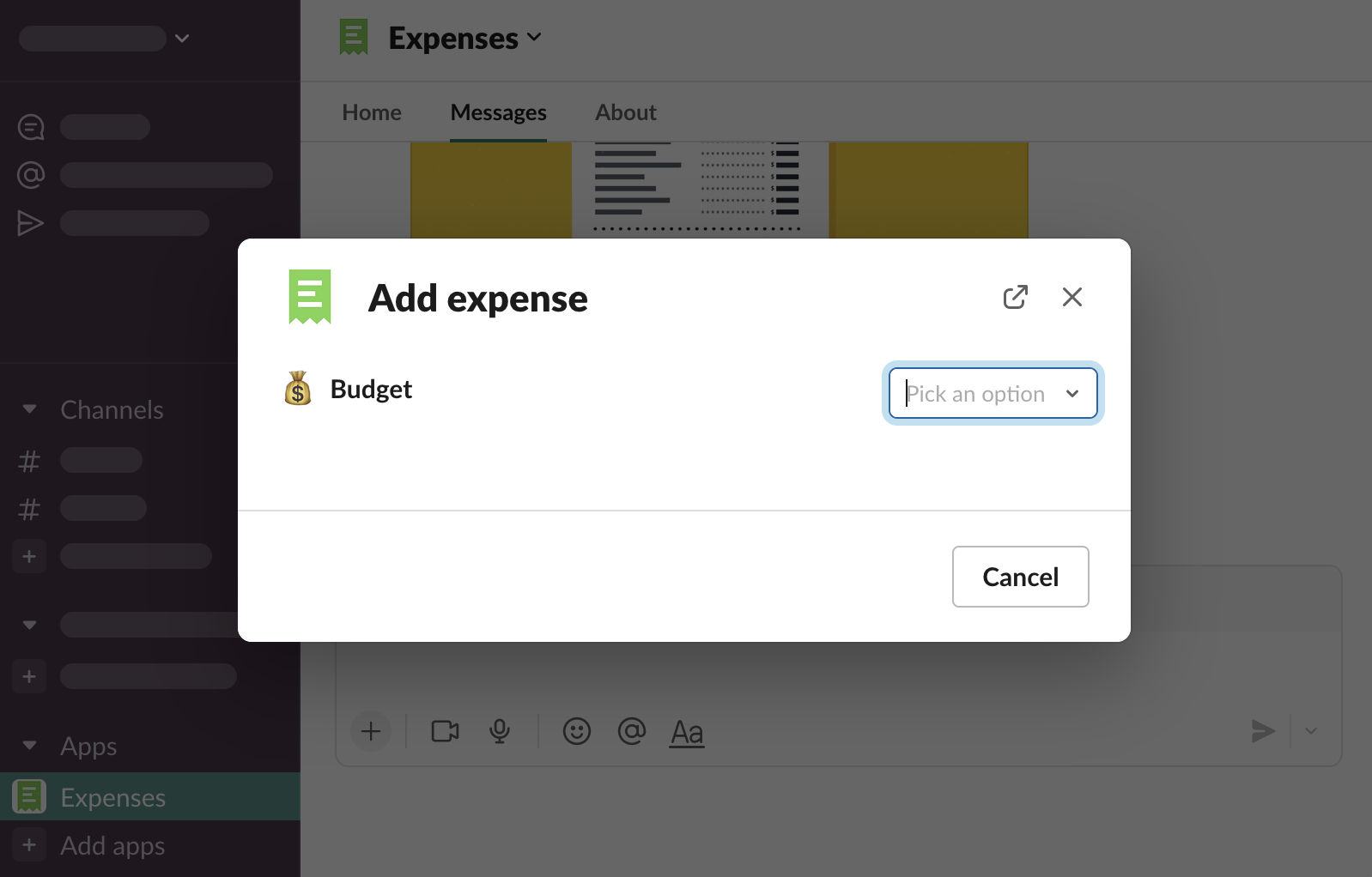
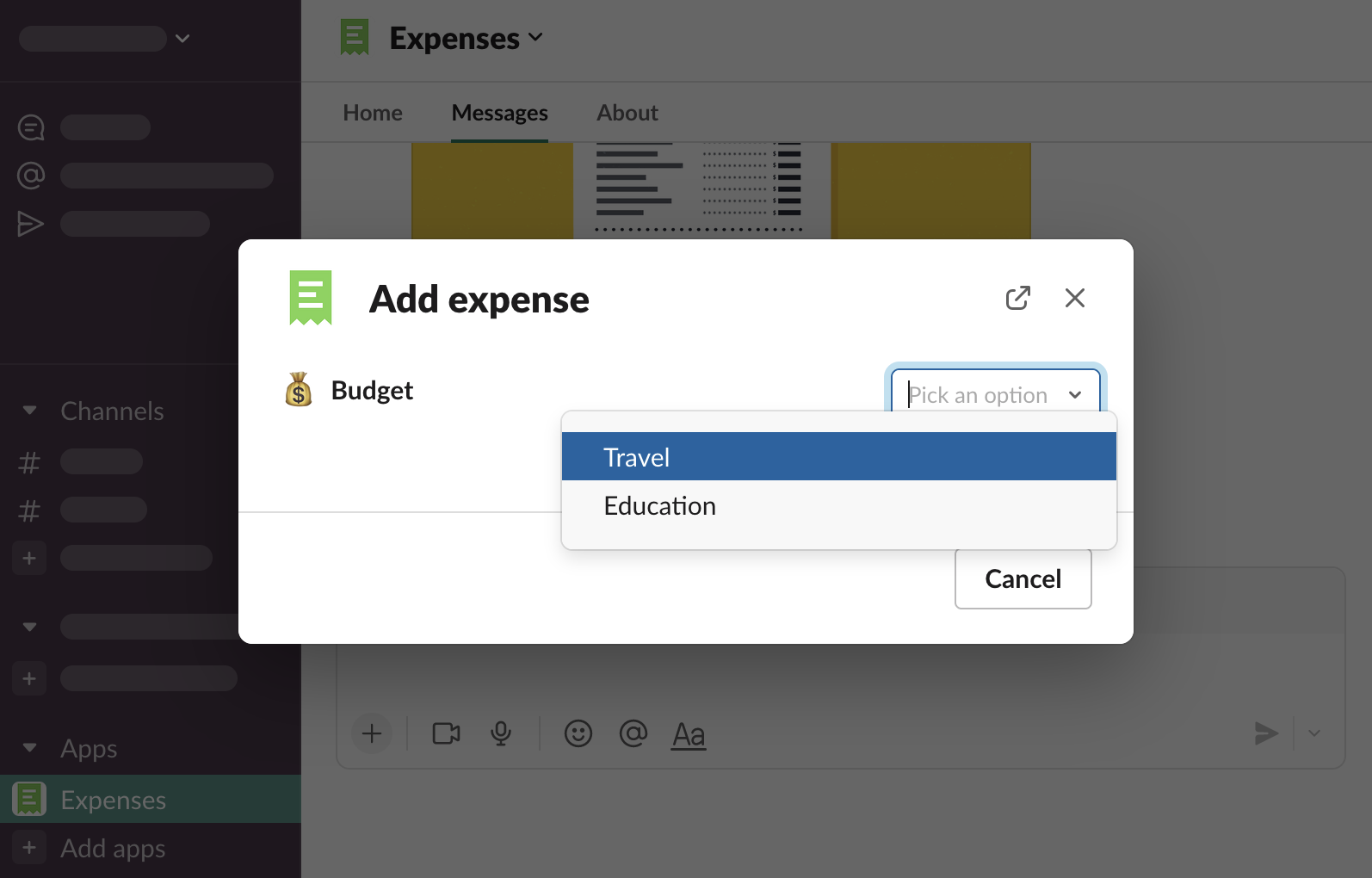
Choose a budget which you want to report the expense to
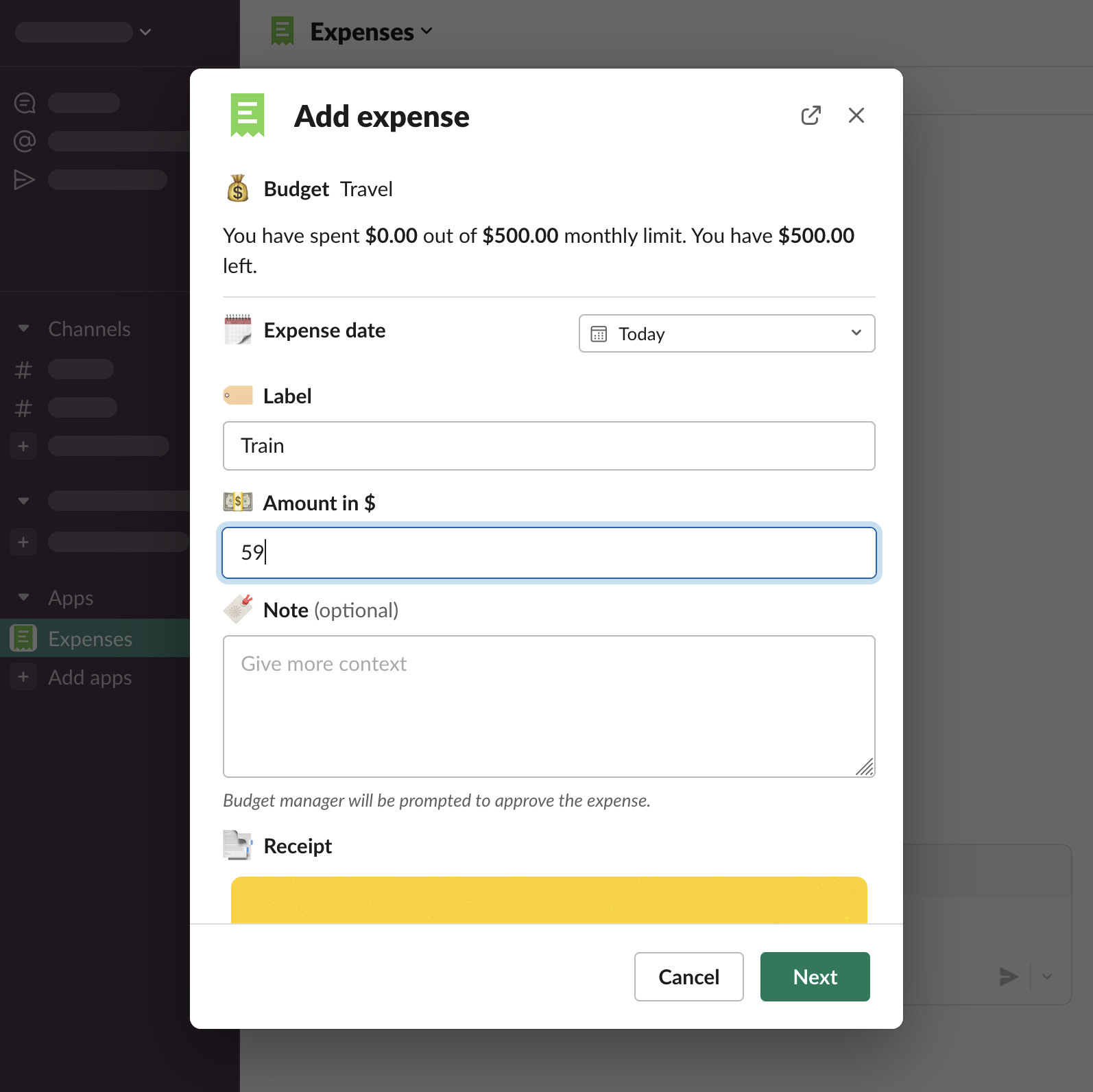
You will see the Add expense modal form with your receipt on the bottom
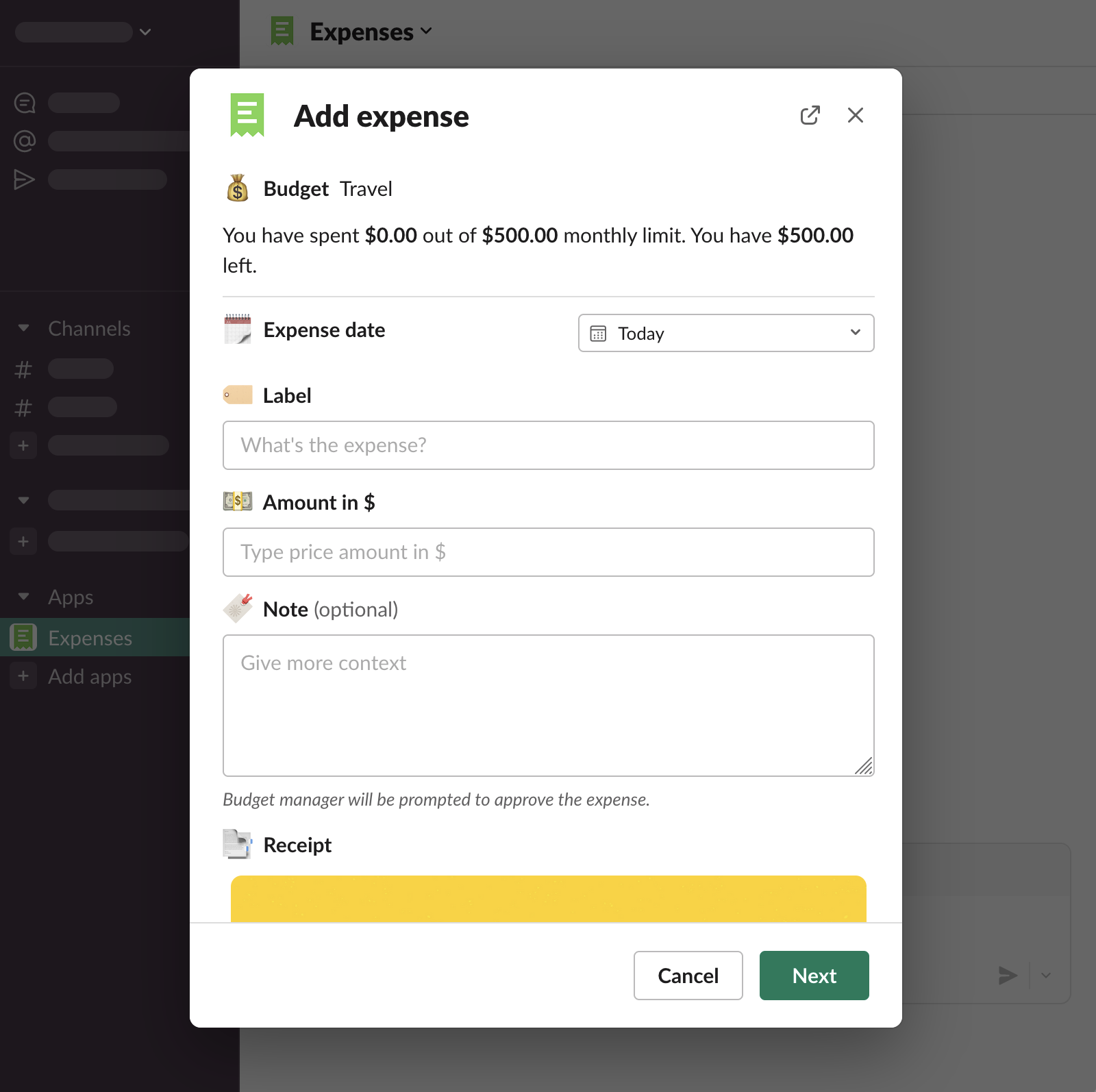
Fill the expense details and click “Next”
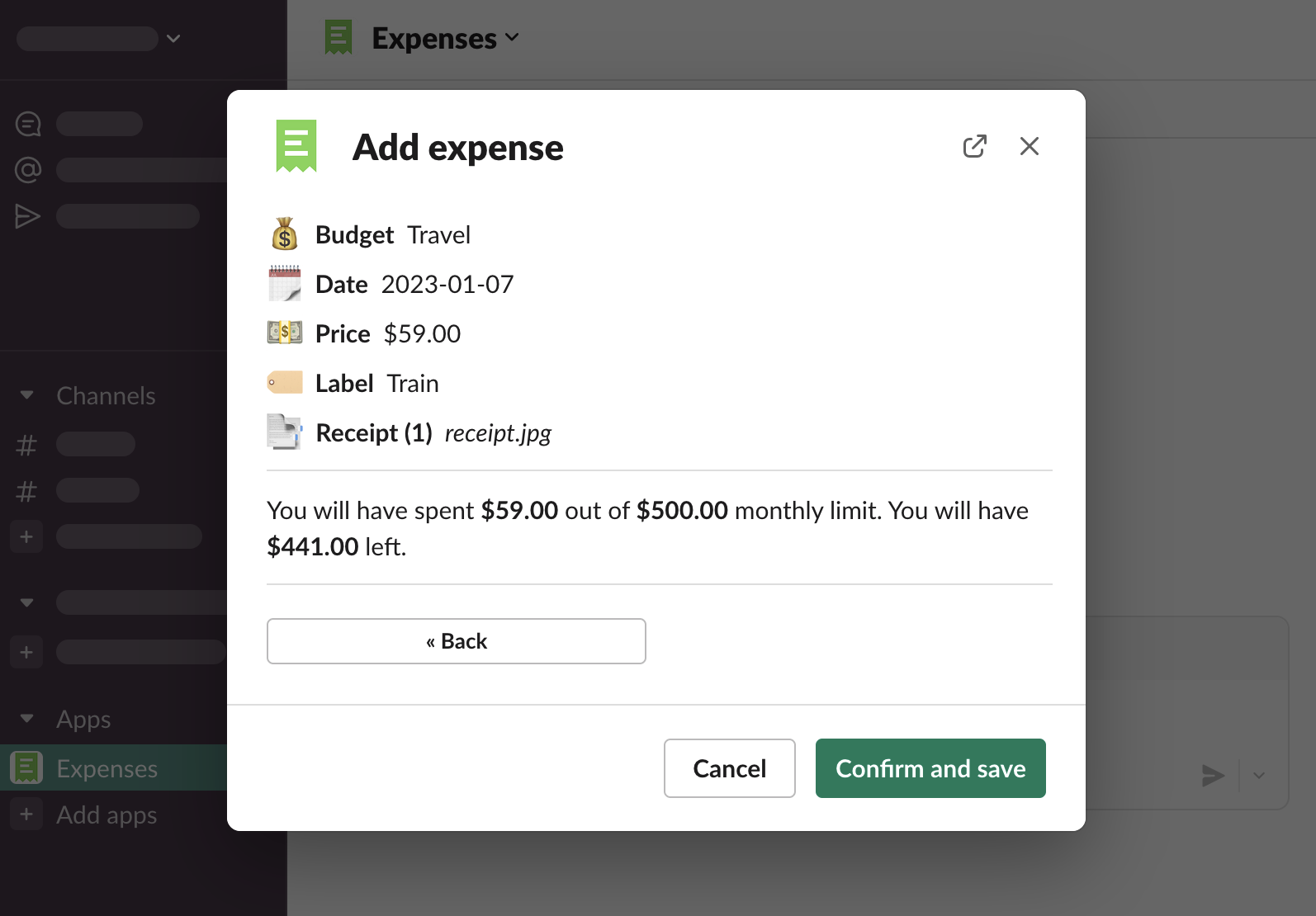
Confirm the details are correct and click “Confirm and save”. You will not be able to edit the expense yourself after that
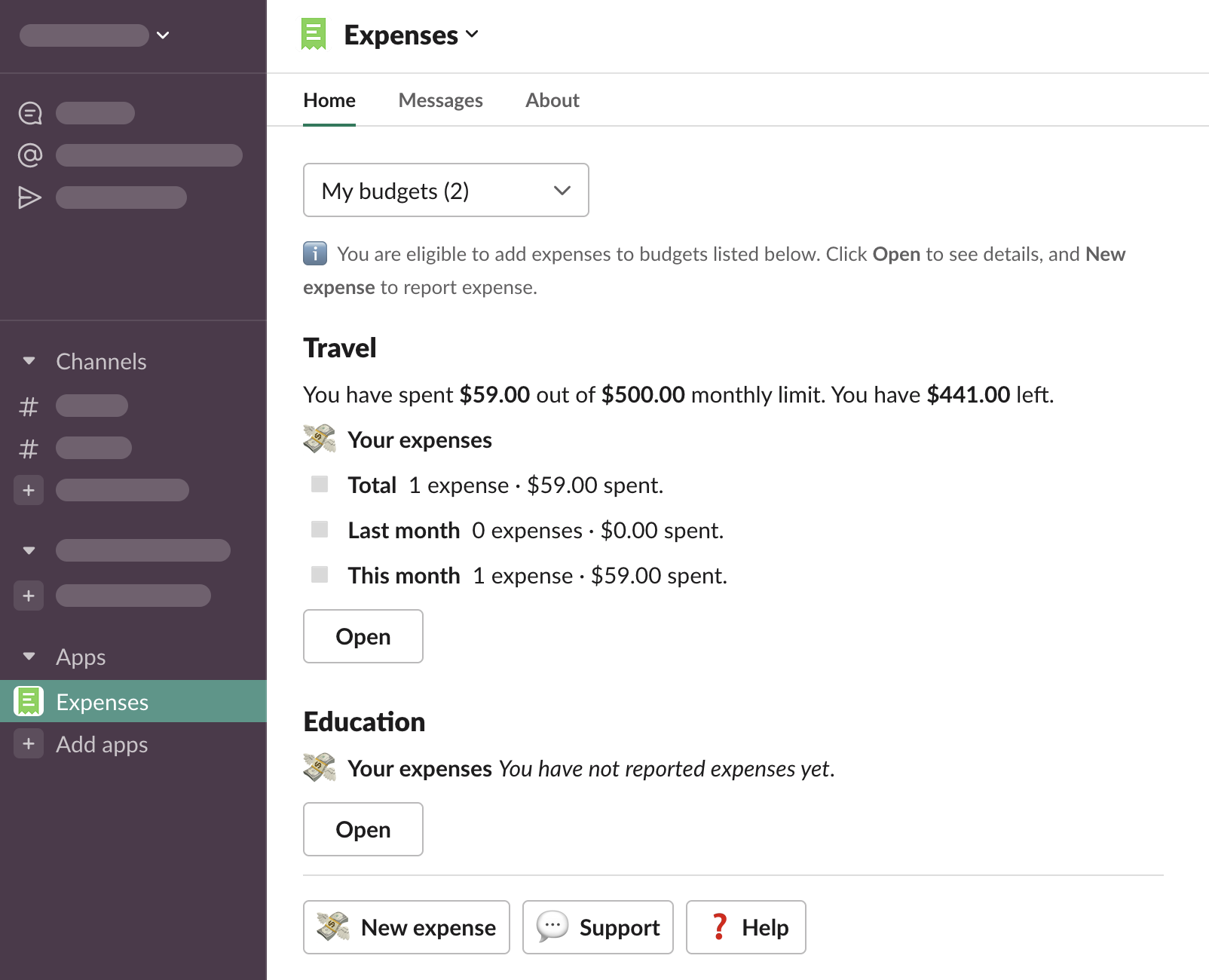
The expense has been reported. Open App Home and see your updated budget summary
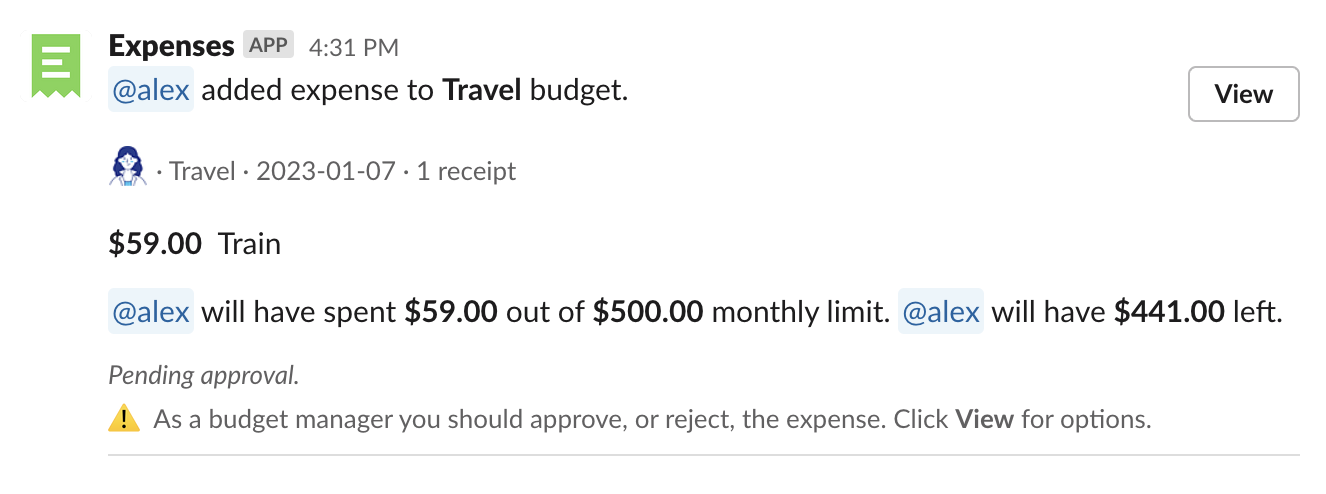
At the same time the budget managers have received a notification about the newly reported expense and can make a decision whether it should be approved. Learn more: Approving / rejecting expenses
You will receive a notification when the expense has been approved, or rejected

Attach receipt to an existing expense
Hover over a message with files, click “⋮ More actions”, and select “Add receipt” message shortcut
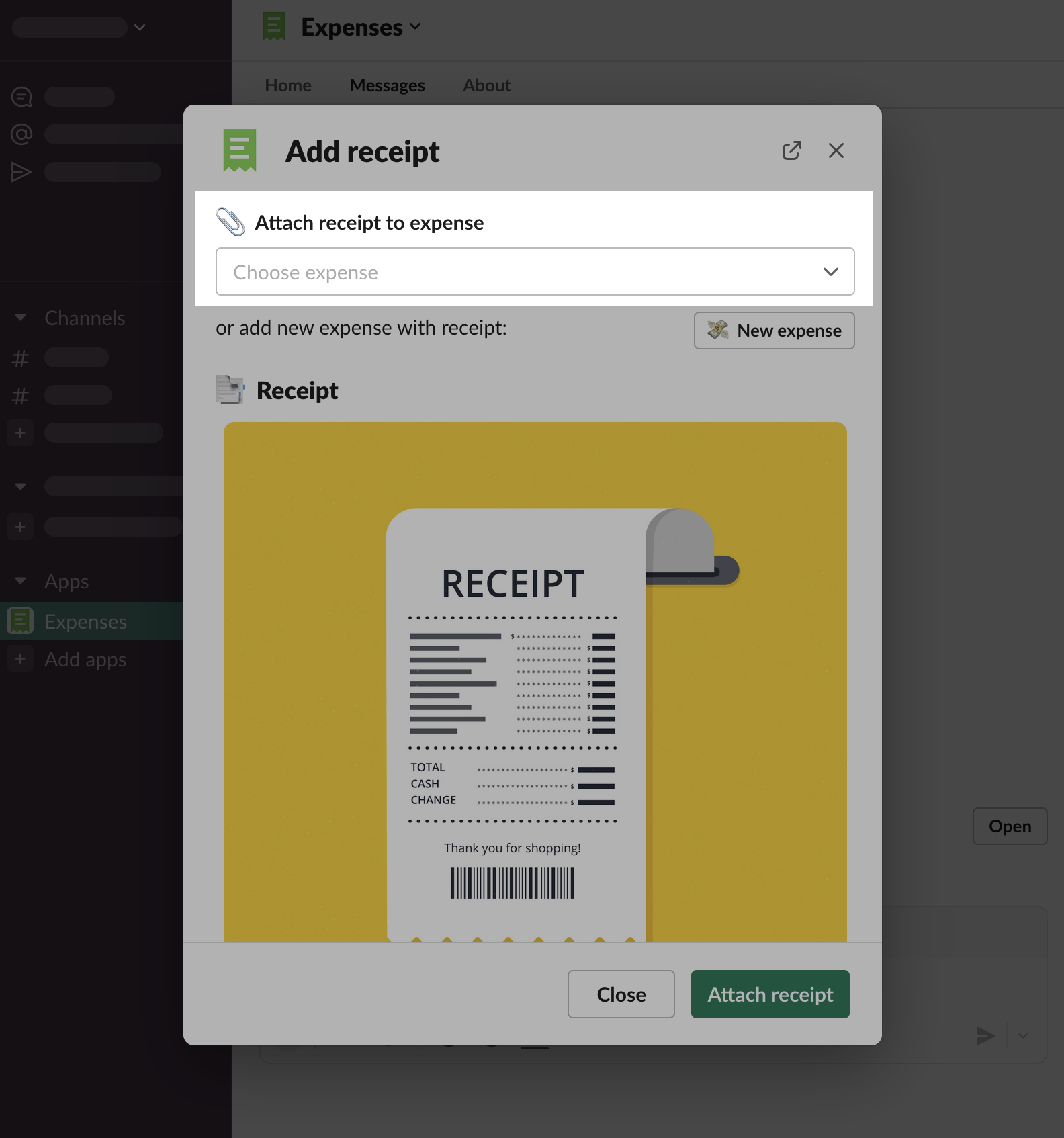
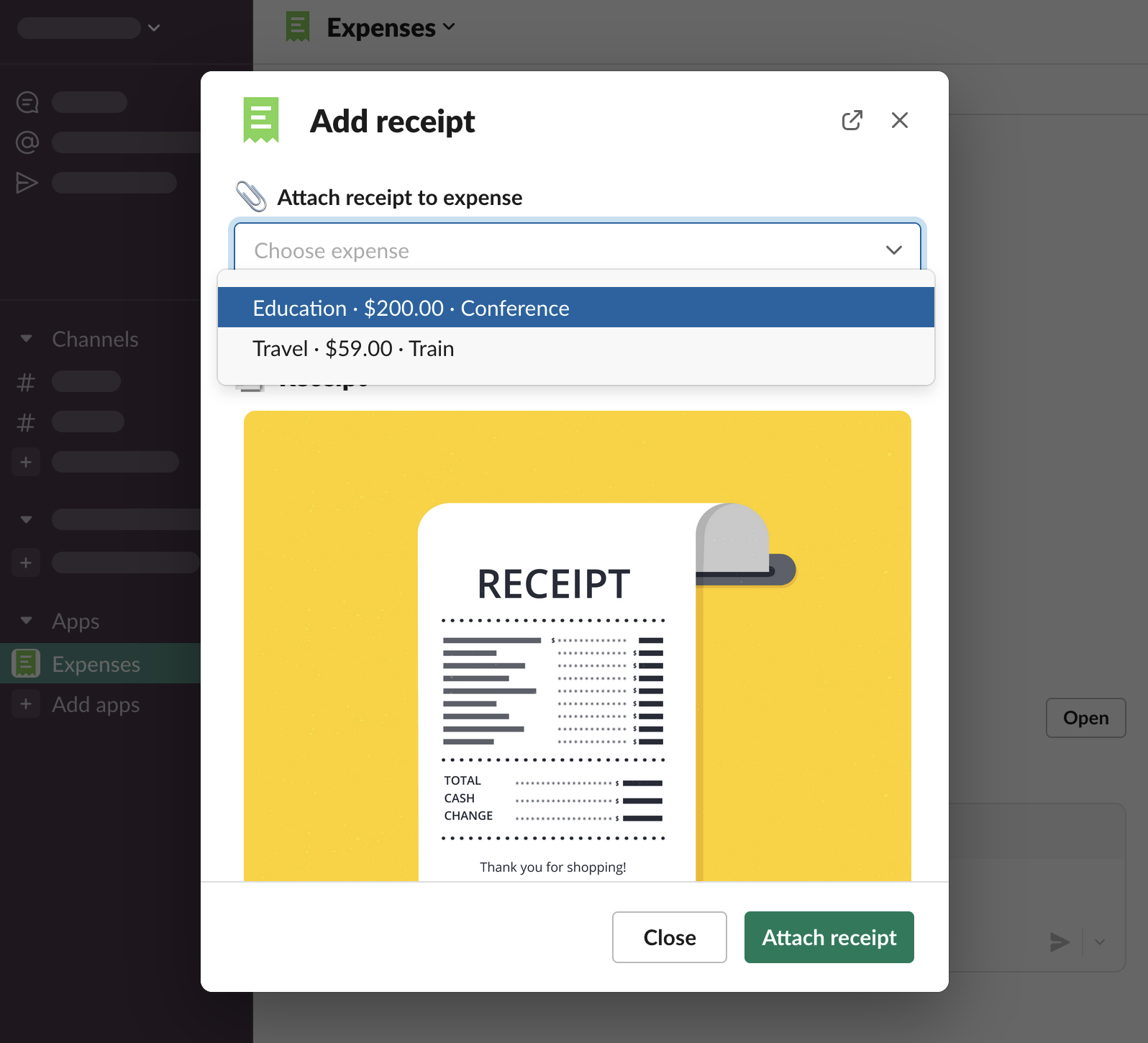
Click “Attach receipt to expense” input and select the expense you want to attach the receipt to. Click “Attach receipt”
Multiple receipts
You can attach multiple receipts to a single expense. Either send multiple files in a Slack message, or use the “Attach receipt” function multiple times.
Add expense without a receipt
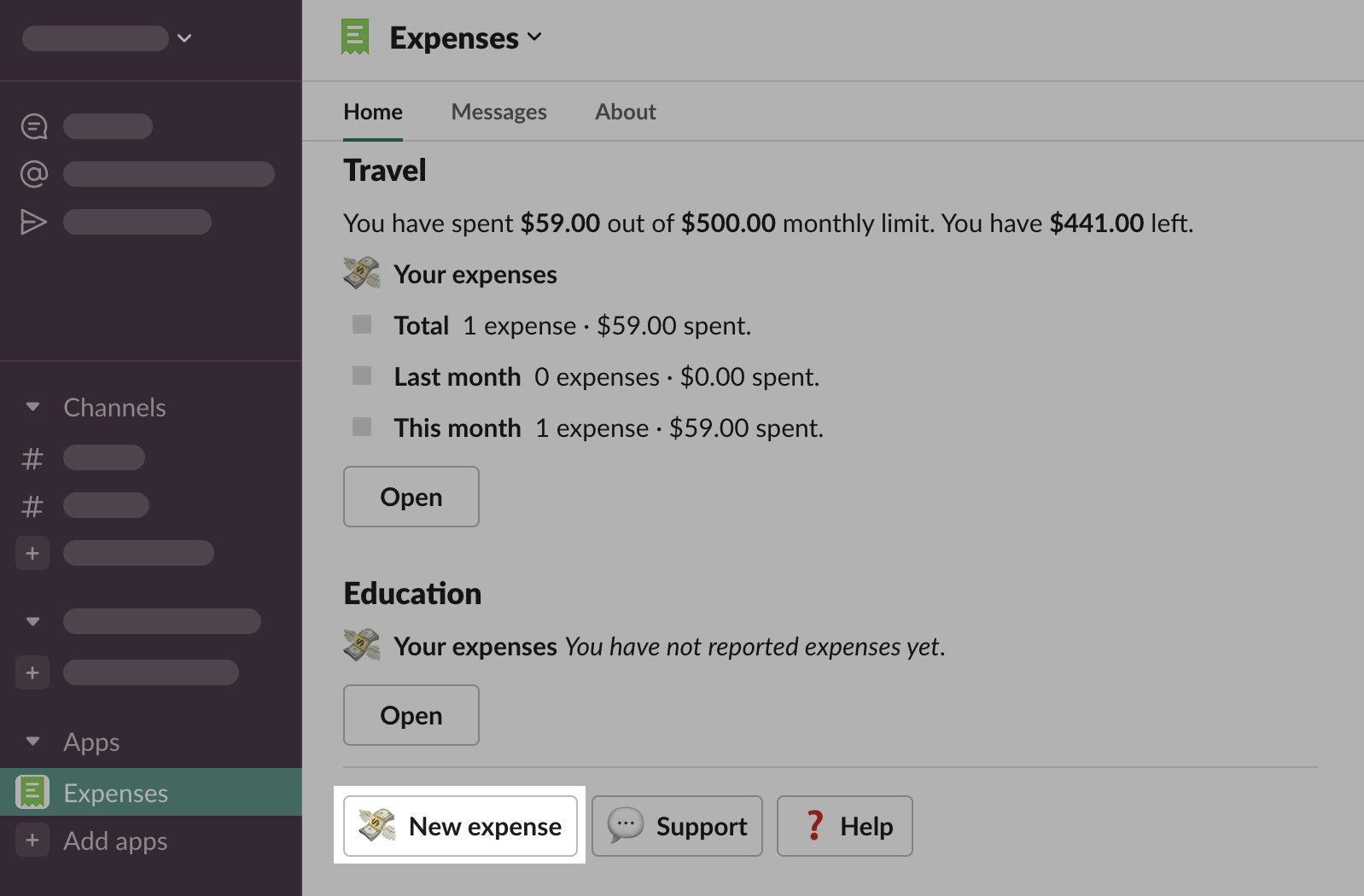
Open Expenses > App Home, click “New expense” button
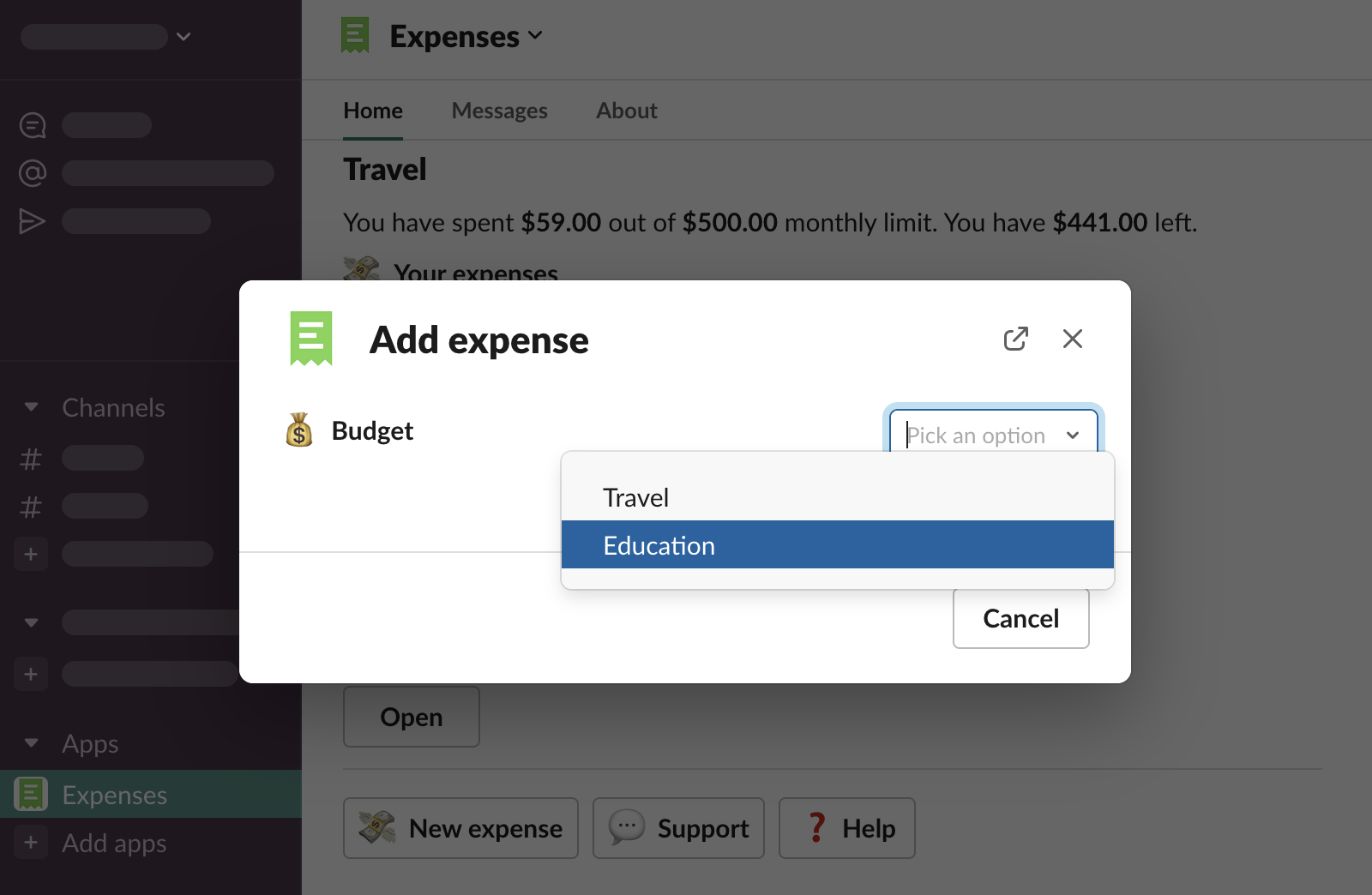
Choose a budget
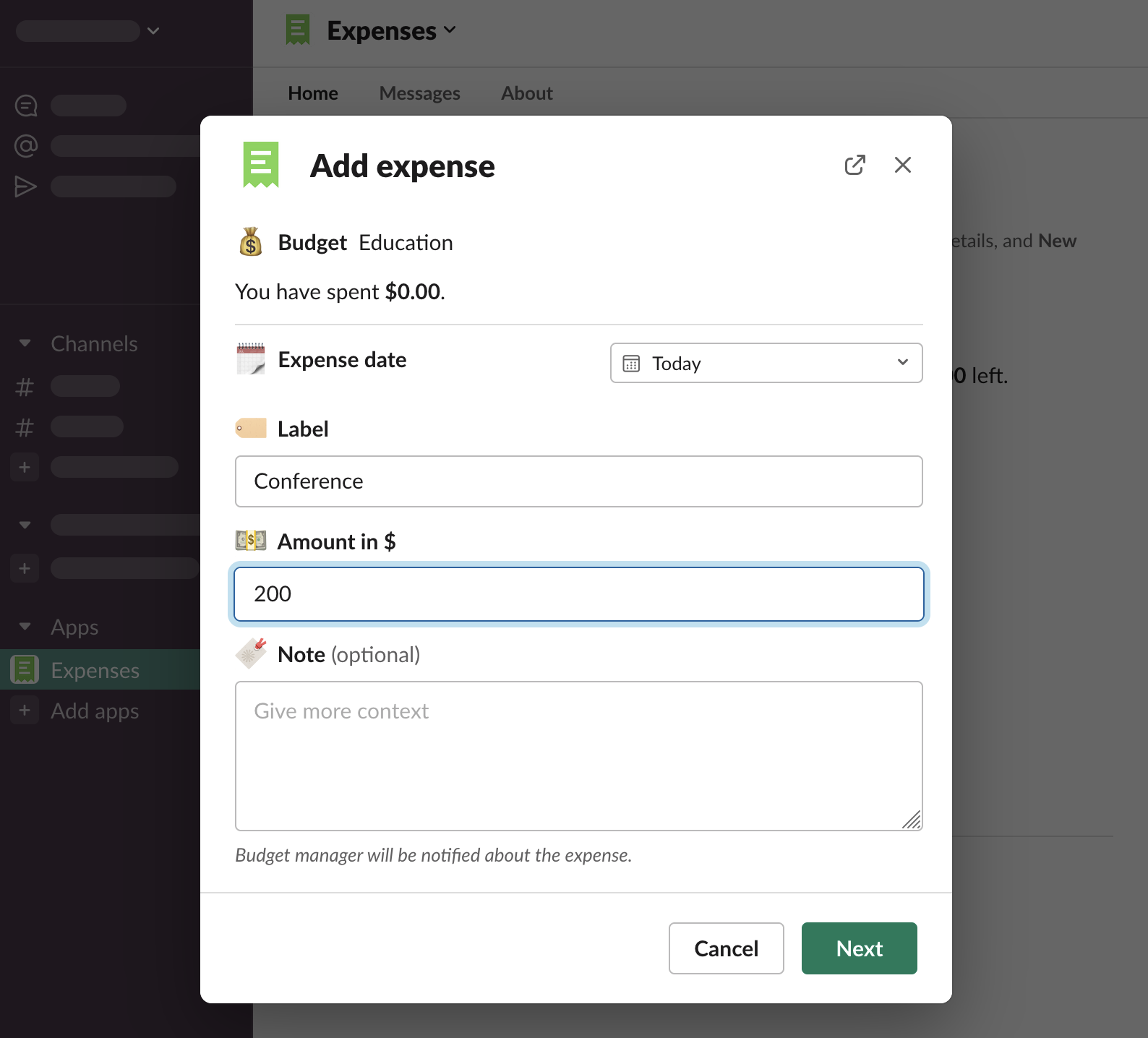
Fill the expense details and click “Next”
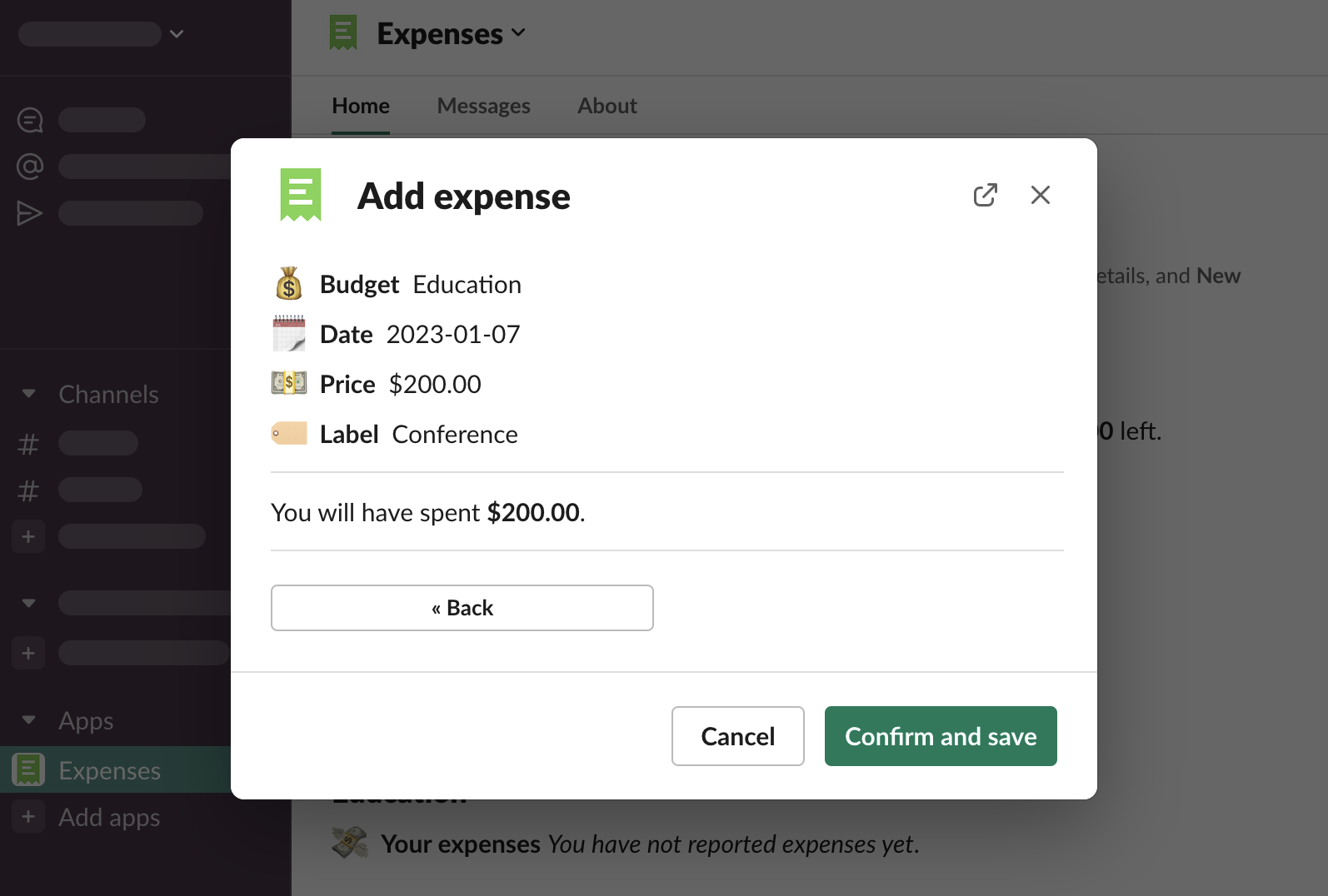
Confirm the details are correct and click “Confirm and save”
Editing expenses
Once you “Confirm and save” the expense, you can’t edit it. Ask your budget manager if you need to make any changes after this point. Learn more: Editing expenses